Working in the Process Dashboard Pane
The Process Dashboard pane shows the processes that you are allowed to see for the defined context. Processes are displayed in the Process List, which is updated automatically upon process changes, matching the dashboard context settings and filter criteria. You can modify the Process List layout and process display, as described in the following procedures.
By default, up to 100 processes are shown in the Process List. If the number of processes that match the dashboard context criteria exceeds this threshold, the Show More Results button is displayed at the bottom of the Process List that lets you show an additional 100 processes. For performance reasons, 1,000 processes can be shown at maximum in the Process List. If 1,000 processes are shown but there are more that match the context criteria, the Show More Results button is displayed but it is disabled.
To add or remove columns in the pane:
1. Click the Pane Menu button in the top right corner of the Process Dashboard pane and select Add or Remove Columns.
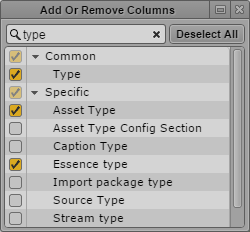
The Add Or Remove Columns window opens. The list is divided in two groups:
- Common: Shows process properties that are available for all MAM process types.
- Specific: Shows non-mandatory process properties.
2. Select the columns you want to add or deselect the columns you want to remove. Name is a mandatory column that you cannot remove.
You can use the search box to find a particular column. You can use the Deselect All button to deselect all selected columns.
3. Click the Close box or click anywhere outside the window to save your settings.
To sort the dashboard columns:
1. Click the heading of the column you want to sort by.
If the column can be sorted and how the column sorts the results depends on the content of the column. For sortable columns, an arrow appears in the column. You can sort the following default columns:
- The Name column sorts results alphabetically, starting from the lowest number and the first letter.
- The Progress column sorts results starting from the lowest number.
- The Registered in MAM column sorts results by date, starting from the oldest date.
If grouping is enabled, sorting is applied to the processes within each group.
2. To reverse the sorting order, click the heading of the column again.
To view additional processes:

Click the Show More Results button.
Up to 100 additional processes are shown at the bottom of the Processes List.
To refresh the Process List:
Click the Refresh button.
The process data in the Process List is refreshed.