Using the Quick Send Feature
For a quick transfer of material to a certain destination, users of Interplay MAM Desktop can just set In and Out points and then initiate the transfer. Starting with version 2.4, MediaCentral UX also provides a “Quick Send” feature for Interplay MAM assets.
Your ability to create and initiate Quick Send processes depends on Interplay MAM user privileges and rules. For example, the credentials you use to sign in to the Interplay MAM database must allow creation of Quick Send processes. Beyond that, Quick Send requires a specific configuration since Interplay MAM provides only a sample Quick Send process.
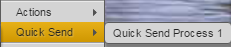
If Quick Send is configured, the Media pane provides a Quick Send menu item for a fast process creation for an asset. Other than the Actions Menu, Quick Send offers only a limited set of processes for MAM assets. If no process type is applicable, the menu item is disabled. When you create a Quick Send process, you select the process type and attach the asset that is open in the Media pane to the process, but you do not need to provide additional data in a Create Process dialog box. Information about In and Out points, the position indicator, and other default settings of the attributes of the configured Quick Send template are passed to the process.
Note the following:
• Quick Send is available only in the Media pane.
• Quick Send applies only to MAM assets.
• Quick Send fetches processes only from the MAM system from which the asset was loaded.
To create a Quick Send process from the Media pane:
1. Load an MAM asset in Asset mode.
2. Set the In and Out marks and the position indicator in the Media player.
3. Click the Pane Menu button, select Quick Send and the process type.
The process is created and shown in the Progress pane with the title <asset name> <In point>-<Out point>. If the process requires you to complete additional user actions, the corresponding task is shown in the Tasks pane. See
Monitoring Processes in the Progress Pane and
The Tasks Pane.