Editing Date and Date/Time Values
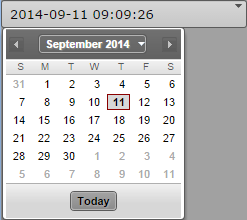
By default, the Date and Date/Time fields are preformatted. The display format depends on the locale of your account. You can enter the entire Date or Date/Time values manually, or select the date value from a calender tool.
To assign a date or date/time value manually:
1. Highlight the figures you want to change and type in the new figures.
2. Press Enter to insert the tag.
To assign the current day using the calendar control:
1. To open the Calendar control, do one of the following:

Click the field’s Down Arrow button.
With the focus in the field press the Down Arrow key.
2. Do one of the following:
Click the outlined number.
Click the Today button.
Press the spacebar.
The Calendar control is closed and the current date is entered in the date or date/time field.
To assign another date using the calendar control:
1. Open the Calendar control.
2. To select a year:
Press Ctrl+Up key (previous year) or Ctrl+Down key (next year).
Click the calendar’s Month/Year indicator, select the year, and click OK.
3. To select a month:
Press Ctrl+Left key (previous month) or Ctrl+Right key (next month).
Click the calendar’s Previous Month or Next Month arrow button.
Click the calendar’s Month/Year indicator, select the month, and click OK.
4. To select a day:
Click the day.
Press the Left Arrow key (previous day), Right Arrow key (next day), Up Arrow key (this day a week ago), or Down Arrow key (this day next week) and press Enter.
The Calendar control is closed and the selected date is entered in the date or date/time field.