Adding, Replacing, and Deleting Tags
You can add, replace, and delete tags from a segment at any time. Note that you can only add one tag of the same type to a segment at a given time; adding a second tag of the same type replaces the original tag. When you work with segments of a strata group, you can add a tag of the same type for each stratum pooled in the group. For example, if your strata groups contains three strata which all have a “date” property, you can have three tags of type “date.”
When you work in Tags view, you can add and replace a tag in several segments at the same time. In Grid view, adding and replacing a tag is limited to the selected tags field.
To add a tag to a segment:
1. Do one of the following:

Right-click the tags field and select Add Tag from the context menu.
Double-click the tags field.
Click the tags field and press Enter.
Click the tags field and press the Insert key.
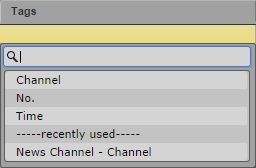
The Tags selector window opens. It shows all properties that are configured for the stratum and up to five recently used tags.
2. Do one of the following:
Double-click the property.
Navigate down the list using the Down Arrow key until you reach the desired property and press Enter.
Start typing the name of the property in the search box to filter the list, select the property, and press Enter.
(Option) Double-click a recently used tag to insert it directly into the segment.
3. Type or select the value in the input control that opens.
4. Press Enter.
The tag is added to the segment.
(Tags view only) To add a tag to several segments at the same time:
1. To select several segments, done of the following:
Click a segment and use the Up Arrow or Down Arrow key to select a series of segments.
Shift+click the two segments that begin and end the series of segments you want to select.
Ctrl+click the segments you want to select, regardless of order or arrangement.
Press Ctrl+A to select all segments.
2. Open the Tags selector window.
3. Do one of the following:
Double-click a recently used tag.
Double-click a property, type or select the value, and press Enter.
The tag is added to all selected segments.
(Tags view) To replace tags:
1. Select one or several segments.
2. Open the Tags selector window.
3. Do one of the following:
Double-click a recently used tag.
Double-click a property, type or select the value, and press Enter.
The original tag is replaced by the new tag in all selected segments.
(Grid view) To replace a tag:
1. Double-click the tags field.
2. Type or select the new value in the input control that opens, and press Enter.
The original tag is replaced by the new tag in the selected segment.
To cancel tag insertion:
Press the Esc key.
Click outside the Tags selector window.
To delete a tag:
Click the tag’s X button.