Adjusting Audio Levels for Advanced Sequences
You can adjust audio levels for segments in each track in an advanced sequence. These adjustments are saved with the sequence and preserved when sending to playback. You can also adjust the master volume for the overall audio mix. Master volume adjustments are not saved.
To adjust audio levels for a track in a sequence:

Drag the audio slider for the track you want to adjust.
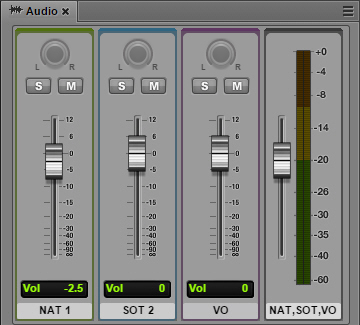
The change in audio level is shown in the volume level display below the slider. The following illustration shows volume lowered to -2.5 dB for NAT track 1.
For more information about audio controls, see
The Audio Pane.
To adjust the master volume for a sequence:
Drag the master volume slider.
To set the volume at the default level for a track or the entire sequence:
Double-click the slider.

You can change the default reference level for the master volume. See “Setting the Reference Level” on page 216.