Audio Monitoring for Assets and Basic Sequences
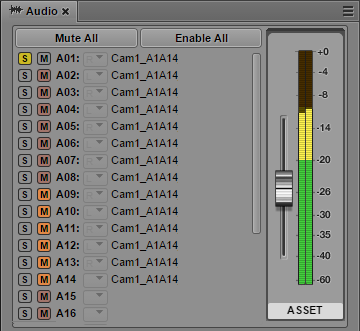
You can use controls in the Audio pane to select which tracks to monitor for assets and basic sequences. Assets and basic sequences can include up to 24 tracks of audio, and you can select any combination of tracks for monitoring. You can adjust the level of enabled tracks by using the volume slider next to the audio meters.

See the
MediaCentral ReadMe for possible limitations on the number of tracks you can monitor.
The display is similar if an uneditable sequence is loaded in Output mode. Audio tracks are displayed and you can monitor the audio. Uneditable sequences are colored dark red in the Sequence pane. For more information, see
Opening and Editing an Existing Sequence in the Sequence Pane.
The first time you open the Audio pane all tracks are enabled for monitoring. Any custom monitoring that you set is retained from session to session.
The following illustration shows the Audio pane for a master clip (left) and a basic sequence (right).
These displays are very similar. For a master clip, audio tracks are labeled with the name of the master clip (in this example, Cam1_A1A14). For a sequence, audio tracks are labeled with the name of the sequence (in this example, Basic Sequence). The label beneath the audio meters shows which mode is selected in the Media pane.
In the master clip, tracks A01 through A08 are enabled for monitoring, which is indicated by the gray S (Solo) and M (Mute) buttons. Tracks A09 through A14 are muted, which is indicated by orange M buttons. In the sequence, both tracks are enabled for monitoring.
If a group clip is loaded in the Media pane, additional controls are displayed in the Audio pane. See
Working with Group Clips.
To disable monitoring of a track:

Click the M button so that it is colored orange. You can mute more than one track.
To enable monitoring of a track:
Click the M button so that it is colored gray.
To disable monitoring for all tracks:
Click the Mute All button.
To enable monitoring for all tracks:
Click the Enable All button.
To mute or enable all but a selected track:
Alt+click an M button for a specific track.
If one track is muted (the M button is colored orange), Alt-click the button to enable the track and mute all other tracks. To mute the single track again and enable all other tracks, Alt+click the M button again.
To solo a track:
Click the S button. M buttons for other tracks are automatically colored dull orange. You can solo more than one track.
The following illustration shows track A01 selected for soloing. Tracks A09 through A14 were manually muted (bright orange). Other tracks were automatically muted (dull orange).