Adding Production Cues
When you format a story as a script for a news broadcast, you can add production cues to provide valuable information to technical staff as well as machine control commands for devices, such as character generators.
You add production cues to scripts from the Story area and edit them in the Cue List area of the Script Editor. When added to a script, each production cue has an associated number. The number appears as a production cue marker in the script, which corresponds to the insertion location of the production cue’s text box in the Cue List.
To insert a production cue into a script:
1. Position your cursor in the story where you want to insert the production cue marker.
2. 
Tap the Plus button.
The MediaCentral mobile application adds a production cue marker with a number into the story at the cursor position. The marker corresponds to the production cue with the same number located in the Cue List.
3. Swipe left to view the Cue List and edit the production cue.
4. Enter the production cue information — for example, Take VO, On Camera, Take SOT, or Take Live.
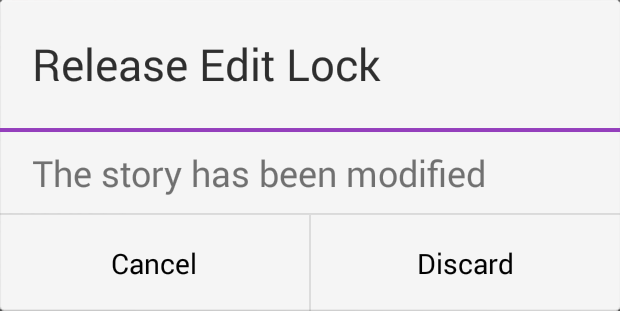
The application automatically saves information in the newly inserted production cue when you navigate elsewhere within the application. If you tap the Back button when you have turned off the Autosave Stories option in the settings, a message appears asking you to confirm whether to save the changes. You can choose to save the story or exit edit mode without saving your changes.