The Queue/Story Pane
In MediaCentral UX, you can create iNEWS stories, edit them in the Queue/Story pane, and save them on an iNEWS server.
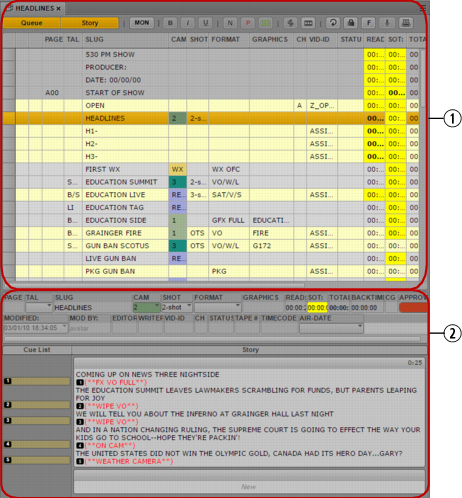
The Queue/Story pane can display either an iNEWS queue, such as a show's rundown, or a story in that queue. The Queue/Story pane can also display both a queue and a story in that queue, as shown in the following illustration:
1 | The Queue section |
2 | The Story section, also called the Script Editor. For more information, see The Script Editor. |
The name on the tab of a Queue/Story pane changes based on the story you select in the pane. You can move the mouse pointer over the tab to view the entire path name.
When only the queue is displayed in the pane, the display is called a grid view. When only the story is shown in the pane, the display is called a story view. When both are visible, the display is called a split view.
You can use the horizontal dividing line between the queue and story sections of the pane to adjust the ratio of the split view within the pane. When you position your mouse pointer over the dividing line, the mouse pointer changes to a double arrow. You can then click and drag the dividing line up or down to adjust the space allocated to each section of the pane. However, it is not recommended to use this technique to hide one section of the pane or the other.
The ratio you set is retained when you sign out.

You cannot enter data in the Queue section.
If you change queue attributes in iNEWS while you are working in MediaCentral UX, you need to sign out of MediaCentral UX and sign in again to view your changes.”