Importing an Individual User
After an administrator successfully imports a group of users through Windows domain authentication, an additional user can be automatically imported through the MediaCentral UX sign-in screen without the need to import the entire group again. After the process is complete, the user is added to the “Auto-Import users” group. The following illustration shows this group with a user named TU11.
You can assign any role to this group. A user added to the group inherits any role and other permissions assigned to the group.
To import an individual user:
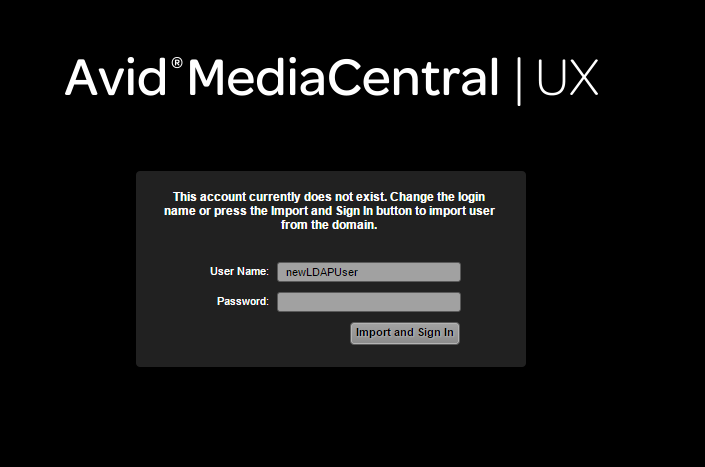
2. At the sign-in screen, a user whose user name is not in the MediaCentral user database signs in to MediaCentral, using the appropriate Windows domain user name and password. Another sign-in screen is displayed, as shown in the following illustration.
3. Click the Import and Sign-In button.
A message is displayed, the user is imported to the “Auto-Import users” folder, and the user is signed in with the role inherited from the “Auto-Import users” folder.
If the user name exists in Windows domain, but the user provides the wrong Windows password, the user is imported but the sign-in fails. The user can sign in again with the correct password. If the user provides a user name that does not exist in either the Windows domain or the MediaCentral user database, the user is not imported and the sign-in fails.