Importing Groups of Users
Importing a group of users is a two part process:
• Supply information about the authentication provider.
• Perform the actual import.

During the import process authentication requests cannot be handled. Currently signed-in users might not be able to complete their work. Other users will not be able to sign in. You should inform active users that the system will not be available.
New users added to the Windows domain are not continually imported to the MediaCentral UX user database. To add new users, you need to perform another import or have individual users sign in, as described in
Importing an Individual User.
Users deleted from the Windows domain are not automatically deleted from the MediaCentral UX user database and they are not deleted if you perform another import. A user deleted from the Windows domain cannot be authenticated and thus will not be able to sign in. If you want to delete that user’s account, you need to delete the account manually.
An organization might have an Active Directory that includes several domains. MediaCentral UX allows user authentication from multiple sub-domains. In this case, set the common root of the domain instead of the Base DN of a specific domain. MediaCentral User Management will then authenticate against the overall directory, allowing users from all imported domains to log in.
Administrators can set more than one Windows domain server for user authentication. This feature is useful for facilities that use mirrored LDAP servers, so that a backup is available if one server goes offline. In the Authentication Providers section in the Users layout, enter the computer names of the servers, separated by a comma but no space, in the Hostnames text box.

When users are imported into MCS, the user data is stored in the local user database. The fields in this database have a maximum limit of 255 characters. LDAP allows for some fields such as the “Distinguished Name” (DN) to be longer than 255 characters. If you find that some users do not import are not imported into MCS, verify that none of the fields associated with the domain user are longer than 255 characters.
When importing users from LDAP, you should select no more than 5000 users at one time. This is Microsoft’s recommended limit of operations per LDAP transaction. If you attempt to import more than 5000 users, the process might time-out and the import would fail to complete. To avoid this problem, import users in groups of 5000 or fewer. For more information, see the following link:
https://technet.microsoft.com/en-us/library/cc756101.aspx#BKMK_LDAP.
To supply information about an authentication provider:
1. Sign in to MediaCentral UX as an administrator and select Users from the Layout selector.
2. In the user tree, double-click the top-level group Users.
3. In the Authentication Providers section of the Details pane, select the option Windows Domain Authentication.
The option “Allow Weak Passwords” does not apply to users imported from Active Directory. MediaCentral UX imports and uses the same sign-in credentials that are used in Active Directory.
4. In the Server section, supply the following information:
- (Optional) If the Active Directory uses Secure Sockets Layer (SSL) technology, select Use SSL Connection.
- Type the hostname of the Windows domain server on which the user database is stored.
If you are using more than one Windows domain server for user authentication, enter the computer names of the servers, separated by a comma but no space.
- Type the port for the domain server. The default port is 389. For an SSL connection, the default port is 636.
- Type the Base DN (root location) where the import of the user tree should be started. When you begin the import procedure, the user tree is displayed and you can select the subgroups you want to import.
How you type the Base DN depends on how your Active Directory is configured and which domains you want to authenticate from. If you want to authenticate from multiple sub-domains, set the common root of the sub-domains instead of the Base DN of a specific domain.
For example, the common root of an Active Directory with multiple domains could be named “company.com” and could be divided into the domain components DC=company and DC=com. Type these entries separated by a comma, but no space:
DC=company,DC=com
For a specific sub-domain, you might type:
DC=company,DC=division,DC=com
5. In the Sign-In Credentials section, do one of the following:
- Select Use Anonymous Access. If you select this option, the User Name and Password fields in this section are inactive and not required.
- Type the user name and password of a domain user who has access to the domain server.
How you type the user name depends on how your Active Directory is configured. For example, you can specify the user “Administrator” in the group “Users” by typing the following, separated by a comma, but no space:
CN=administrator,CN=Users
Your Active Directory can also be configured to use only a user name. In this case type the domain and the user name, for example:
DOMAIN-NAME\administrator
The password is represented by asterisks.
To test if your user name and password are correct, click Test Connection.
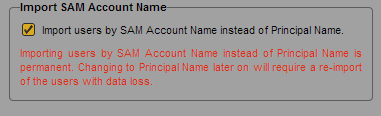
6. (Optional) If your facility uses SAM Account Names instead of the newer Active Directory Principal Names, select “Import users by SAM Account Name instead of Principal Name.” This configuration is specifically for those users who are used to logging into Interplay Production with the older Windows Domain style login.
If you later decide to change to Principal Name, you need to reimport users and the current settings will be lost.
7. If you do not want to display the name of the Windows domain controller or controllers, select “Hide domain controllers in the user tree.”
If you select this option, domain controllers are hidden and merged. If you then try to delete a folder of users, the correct domain controller is unknown and an error message is displayed. To delete the folder, you need to deselect the option.
8. If you want to automatically import new users from this Windows domain, select “Use Auto Import.” For more information, see
Importing an Individual User.
9. Click Apply.
Clicking Apply saves the settings but does not import users.
To import users from a Windows domain:
1. Click the User Tree Pane Menu button and select Import Users.
The Import Users dialog box opens.
If you did not specify an authentication provider, the following message appears: “You have no authentication providers configured.” Click the Go to Authentication Providers button to display the Details pane and then complete the previous procedure.
2. Select whether you want to overwrite existing users that have the same user names.
In most cases, especially when reimporting, select “Do not overwrite existing users that have the same names.” This option preserves any existing user settings.
3. Click the Load User Tree button.
A bar displays the progress while the user tree is loading. When the loading is complete, the root of the user tree appears.
4. If necessary, click the triangle to expand a group and display subgroups. You can also use the maximize icon to expand the pane. Select the groups that you want to import, and click Import.
A message box displays the progress of the import. If the import process fails for any reason, such as a failure to connect to the Active Directory server, a message box describes the problem and gives you an option to retry.
If the import process is successful, the User Import Results dialog box opens.
There are four tabs:
- All: Lists all users and groups and their status
- Failed: Lists the users and groups that could not be imported and their status
- Skipped: If you selected “Do not overwrite existing users that have the same names,” lists the users and groups that were not imported because they already exist in the user database.
- Successful: Lists the users and groups that were successfully imported.
The following table explains some messages that can prevent a successful import. Check with the Active Directory administrator to resolve these problems.
Message | Cause |
Mandatory attribute ‘userPrincipalName’ not set. | The required userPrincipalName attribute of the user is empty. This can be caused by migrating pre-Windows 2000 users or by creating users without providing this attribute. |
Insufficient access rights | The user account provided for the import does not have sufficient privileges to read the user information. |
5. Click OK.
The selected group is imported in the user tree, in the folder named Users/Import/Microsoft/full_qualified_name. You can then assign imported users to other groups.