Configuring Image Quality
The Player system settings include options to improve the image quality that is displayed in the Media viewer:
• Maximum size of the proxy video. You can select the pixel dimensions of the image displayed by selecting the pixel width. This is especially useful if a user wants to work with a large Media viewer. The default pixel width is 480. As you enlarge the Media viewer, the pixel size of the image enlarges up to the maximum size.
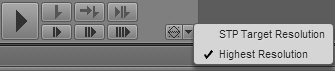
• Option to display high-resolution video (for a multi-resolution asset). You can enable a button in the Media pane that lets the user view the highest resolution video that is available for an asset. If video is available only in one resolution, the video is displayed in that resolution.
This button also allows the user to view the asset in the STP Target Resolution. If the asset is not available in the target resolution (as specified in the selected STP profile), a Media Offline screen is displayed.
This option is available for both frame-based playback and file-based playback of Interplay Production assets. It is not available for Interplay MAM assets. See
Configuring File-Based Playback.
The Image Quality Settings also include an option to export MP4 video files for sequences loaded in the Media pane Output mode. For more information, see
Exporting an MP4 File.
You set these options for a user group that is defined in the Users layout.
The following illustration shows all options enabled for the group named Journalists-Advanced.
Note the following:
• These settings apply only to users at the top level of the group. They do not apply to users in subgroups.
If you need to assign Image Quality settings to a group that includes subgroups, you can create a special group just for high-quality settings and assign Image Quality settings to this group. Then add the appropriate users to this group but do not use subgroups. Because a user can be a member of multiple groups, you can assign users to the new group without removing them from other groups.
• If a user is a member of more than one group, and different pixel sizes are associated with the groups, the user is assigned the largest pixel size.
• This setting does not apply to remote assets.

If workstations in a facility will regularly use enlarged images for proxy video or high-resolution video, Avid recommends changes to the MediaCentral infrastructure. For more information, see
MediaCentral Platform Services Hardware Guide.

You can also set the compression of the proxy video. Select Playback Quality in the Media pane menu.
For more information, see Selecting the Playback Quality.To enable settings for image quality:
1. Sign in to MediaCentral UX as an administrator.
2. Select System Settings from the Layout selector.
The System Settings layout opens.
3. In the Settings pane, select Player.
4. In the Image Quality Settings section of the Details pane, do one of the following:

To add a new group, click the plus button, then select the user group from the User Group menu.
To edit settings for an existing group, click the user group name.
5. To set the image size, select the width in pixels from the Maximum Size menu.
6. To enable a button for viewing high-resolution video, select MultiRez.
After applying this setting, a user who is a member of the selected group can select STP Target Resolution or Highest Resolution from the MultiRez button, which is displayed in Asset mode and in Output mode in the Media pane.
7. To enable an option for creating MP4 files, select MP4.
8. Click Apply.