Snapping in the Timeline
In some cases, edits that you make in the Sequence Timeline are limited to particular timecode locations. In other cases, you can make an edit to any timecode location. For example, dragging a video segment is limited to the start or end of another video segment. However, trimming the end of a video segment can extend to any available timecode location.
If an edit can be made to any timecode location, snap points can help you accurately align your edit. This can be particularly useful when aligning audio and video. Snap points include:
• The position indicator
• The start point or end point of another segment in the timeline
• The original start point or end point of the segment you are dragging
• The beginning of a sequence
• The boundaries of a timing block
As you drag a segment or endpoint, the dragging action pauses briefly or snaps to these points. If you then release the mouse button, the edit is made at the snap point.
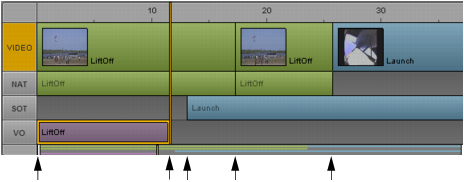
The following illustration shows snap points for a VO segment.
Snap points are limited to advanced sequences.
Starting with MediaCentral UX v2.7, you can use Ctrl+click (Windows) or Command+click (Macintosh) to snap the position indicator to the closest cut of the enabled tracks. See
Navigating in the Sequence Timeline.
To override pausing and snapping:

Hold down the Shift key while you drag a segment or end point.