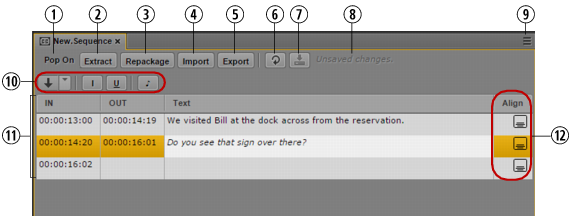
Display or Control | Description | |
1 | Closed-caption type | Displays the type of closed caption currently loaded: Pop On or Roll Up. |
2 | Extract button | Click this button to extract closed captions from an Interplay Production sequence and display them in the Closed Captioning pane. |
3 | Repackage button | Click this button to combine the edited closed captions with the Interplay Production sequence. |
4 | Import button | Click this button to import closed captions from a SCC file and display them in the Closed Captioning pane. |
5 | Export button | Click this button to export closed captions from MediaCentral UX to an SCC file or a TTML file. |
6 | Refresh button | Updates the display of closed captions. If the focus is in the Closed Captioning pane, you can also press F5 to update the display. |
7 | Save button | Saves closed captions as data that is associated with the Interplay Production sequence and exits edit mode.  Edit mode refers to the state in which the cursor is displayed in the Text field, the text field is colored white, and you can enter text.Captions are automatically saved when you exit edit mode by pressing Ctrl + Enter or by clicking outside of the text box. Edit mode refers to the state in which the cursor is displayed in the Text field, the text field is colored white, and you can enter text.Captions are automatically saved when you exit edit mode by pressing Ctrl + Enter or by clicking outside of the text box. |
8 | Save status message | Displays whether closed captions have been saved as data. The messages are “Unsaved changes,” “Saving,” or “All changes saved.” |
9 | Pane Menu button | The following options are available: • Add or Remove Columns. Select the columns you want to display. • Split at Current Playhead position. Divides a closed-caption segment into two, based on the location of the position indicator. The complete text for the segment is copied to the new segment, and you need to edit the text as desired. You can also use Ctrl+E or right-click a selected segment. The position indicator must be located within the closed-caption segment. • Modify Start Timecode. Changes the In point for the first closed caption to match the start timecode of the sequence. The change affects all subsequent closed-caption segments. See Editing the Timing of Closed Captions. • Delete. Deletes the selected closed-caption segment. Functions the same as the Delete key (Windows), Backspace (Macintosh), or fn+Backspace (MacBook). • Set In, Set Out Modifies the start or end of a closed-caption, segment depending on the location of the position indicator. See Editing the Timing of Closed Captions. • Close Gap: Modify In, Close Gap: Modify Out Closes a gap between two closed captions by changing the In point or the Out point. See Editing the Timing of Closed Captions. • Change Alignment. Opens a grid from which you can select where to position the closed caption. See Editing the Text and Position of Closed Captions • Help. Displays a Help topic describing controls in the Closed Captioning pane (this topic). From this topic you can access the entire MediaCentral UX Help system. |
10 | (From left to right) | |
Create Segment button | Creates a closed-caption segment. Use the drop-down menu to set how you want to create the segment: through In to Out points or by the location of the position indicator (playhead). See Creating Closed-Caption Segments. | |
Italics button | Changes the selected text to italics. | |
Underscore button | Adds underscoring to selected text. | |
Musical note | Inserts an eighth note (U+266A) that is a standard symbol to indicate music in a closed caption. | |
11 | Closed-caption list | Displays the In point, Out point, text and alignment for each closed-caption segment. If you scroll down the closed-caption list or scrub video in the Media viewer, the closed-caption list and video display stay in sync. The default sorting in the Closed-Captioning pane is by In timecode, from lower to higher. Click a column head to sort in the following ways: • IN or OUT: lower to higher, or higher to lower. • Text: alphabetically, or reverse alphabetically. |
12 | Align column | Displays the positioning of the closed caption. To change the alignment, select one or more closed captions, double-click the Align column, and select one of the nine positions. |