Display or Control | Description | |
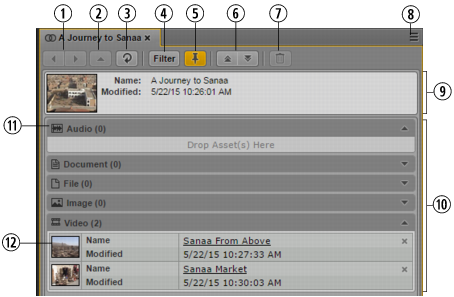
1 | Navigation buttons | Back button toggles the current view to the previous view in the pane. Next button toggles the current view to the next view in the pane. |
2 | Parent button | Navigates to the parent of the asset in the pane (hierarchical associations only). The button is only enabled if the asset that is open in the pane has one parent asset. If it has no parent or more than one parent asset, the button is disabled. |
3 | Refresh button | Refreshes the current view in the pane. |
4 | Filter button | Toggles the filter for associated asset types on or off. When toggled on, the button is colored orange, and the configured filter is applied. When toggled off, the button is colored gray, and all associated assets types of the asset that is open in the pane are shown. See Filtering the Displayed Associated Asset Types. |
5 | Pin button | Toggles pinning of the current asset on or off. When pinning is toggled on, the button is colored orange. Pinning prevents the current asset from being replaced by an asset from another pane. Pin the current asset to create associations. See Creating Associations. |
6 | Expand All and Collapse All buttons | Expand All button expands all associations types and shows all associations in the pane. See Viewing Associated Assets. Collapse All button hides all associations from the pane and shows only the Association types. |
7 | Delete button | Deletes the selected associations. See Deleting Associations. |
8 | Pane Menu button | The Pane menu for the Associations pane contains the following options: • Add or Remove Filters. Allows you to apply an association type-based or content-based filter to the Associations pane. See Filtering the Displayed Associated Asset Types. • Actions. Creates a process in the MAM system and attaches the assets that are selected in the Associations pane to the process. See Creating Processes. • Delete. Deletes the selected associations. • Open in Asset Mode. Opens a sequence in Asset mode in the Media pane. The menu item is only enabled if you select a sequence in the Associations pane. See Using a Basic Sequence as a Source for a Sequence (Interplay | MAM). • Help. Displays a Help topic describing controls in the Associations pane. From this topic you can access the entire MediaCentral UX Help system. |
9 | Current Asset (“Source Asset”) | Shows metadata of the asset that is currently open in the Associations pane (“source asset”). |
10 | Associations List | Shows all assets associated with the current asset grouped by association types. You can expand and collapse all association types in the Associations List using the toolbar Expand and Collapse buttons. |
11 | Association Types | Each association type that can be set for the current asset is shown as a separate group. For each association type, the following are shown: • An association type icon • The association type name followed by the number of associations in brackets • An Expand/Collapse toggle button. Use the button to show and hide the associations of the associations type. As long as no association is created, the Drop Assets Here area is shown. See Creating Associations. |
12 | Associations | Each associated asset (“association”) is shown as an asset card. For each association, the following are shown: • A header frame or placeholder icon. Double-click the header frame to open the asset in another pane. See Opening Associated Assets in Other Panes. • The asset name. Click the asset name link to open the asset in the Associations pane. See Switching Between Associated Assets. • The Modified date • A Delete button. See Deleting Associations. |