MediaCentral | UX Client Licensing
MediaCentral UX requires a user to be assigned one of the following licenses:
• Base License: Can connect to only one system during a session: iNEWS, Interplay MAM, or Interplay Production.
• Advance License: Can connect to any or all systems during a session: iNEWS, Interplay MAM, and Interplay Production.
Note the following:
• Starting with MediaCentral UX v2.8, users that are assigned a Base non-MAM license (Interplay Production, iNEWS) have “orchestration-only access” to all connected Interplay MAM systems. These users have access to the Interplay MAM orchestration features (process creation and monitoring, user task editing) with the following limitations:
- Interplay MAM systems are not shown in the Launch pane.
- Users cannot access MAM folders in the Assets pane, search for MAM assets, or open MAM assets in other MediaCentral UX panes.
• You need to use an Advance license to use the indexed search and to access the central index when you are connecting to multiple systems within your MediaCentral environment. However, if you have only one system in the index and this system is your local system, and you use a Base license for the system type of the index, then you can use Media Index with a Base license.
Running MediaCentral | UX and Interplay Production Concurrently
A client workstation can use a single license to run MediaCentral UX and Interplay Production client applications concurrently. For example, a user can run both MediaCentral UX and Interplay | Access while using a single MediaCentral UX license. For more information, see the Interplay | Engine and Interplay | Archive Engine Configuration Guide.

To run applications concurrently with a single license, the client workstation must be connected to the same LAN as the MediaCentral server. The client workstation must have a correct DNS entry and the MediaCentral server must be configured to resolve the client workstation’s host name.
Installation
Licenses are installed on an iNEWS server or an Interplay Production server, or both. No licenses are installed on the MediaCentral Services server. For Interplay Production, the license types are Key-J (base license) and Key-G (advance license).
See the Avid MediaCentral Platform Services Installation and Configuration Guide for information on installing licenses.
Assigning Licenses
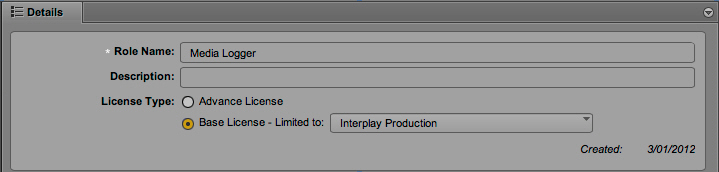
After licenses are installed, a MediaCentral UX administrator assigns a license to a role. The two license types are displayed in the Details pane of the Users layout:
• Advance License
• Base License. The Base License includes a drop-down menu that lets you select either Interplay Production, Interplay MAM, or iNEWS.
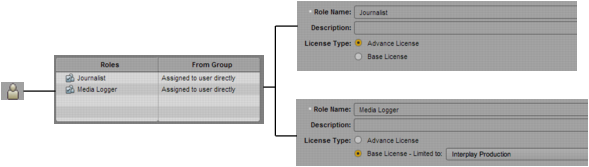
An administrator can assign multiple roles to a user. Multiple-role assignments can help license management by letting the user consume either a Base or an Advance license, depending on the work that needs to be done and the licenses that are available.
The following illustration shows an example of a multiple-role assignment. By default, the Journalist role is associated with an Advance license, and the Media Logger role is associated with a Base license. An administrator can assign both Journalist and Media Logger roles to a user, as shown in the following illustration.
Which license the user consumes is determined by the role the user selects after signing in. This selection depends on the MediaCentral UX application you are using:
• For the MediaCentral UX Web application, the user selects a different role by choosing a layout assigned to that role in the Layout selector.
• For the MediaCentral UX iOS applications, the user selects a different role by choosing the role in the role switcher.
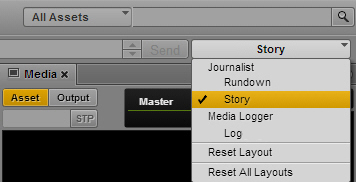
The following illustration shows the Layout selector for the MediaCentral UX Web application. The Layout selector shows two roles, Journalist and Media Logger, with different layouts assigned to each role.
If the user selects the Story layout, the user is working as a Journalist and is consuming an Advance license. If the user switches to the Log layout, the user is then working as a Media Logger and is consuming a Base license.
You can open only those panes that are available through the license you are currently using. If a pane that is not available is open, such as through the Reset Layout command, a message is displayed in the center of the pane that reads “The pane_name is not available for your license type.”
An administrator can assign the same layout to roles that use different licenses. Changing from one license type to another can also cause some panes to be unavailable.
If a user changes to a different role, the visibility of systems in the Launch pane might also change, based on the license assigned to the role. For example, if a user switches from a role that is assigned an Advance license (and allows access to more than one Interplay MAM system) to a role that is assigned a Base license, only one of the Interplay MAM systems remains visible in the Launch pane.
This behavior also applies if you receive an Interplay Production link through the MediaCentral UX Messenger and you do not have a license that allows access to the Interplay Production database. A message is displayed that reads “You do not have permission to view this asset.”