New Features in MediaCentral | UX Version 2.7.1
This topic provides an overview of the major new features in MediaCentral UX v2.7.1.
Avid Maestro Integration
MediaCentral UX v2.7.1 supports integration of Avid Maestro v7.1. Maestro is a universal controller that lets you create and manage template-based, on-air 3D graphics. You can now view and work with these graphics directly within MediaCentral UX and add them as MOS objects to an iNEWS story. For more information, contact your Avid representative.
Closed Captions
Feature | Description |
Offset warning | When creating Closed Captioning data, captions need to be offset by a certain number of frames from the head of media asset. This offset is reserved for buffering data required by EIA-608 standards. If this offset is not maintained, users receive a generic error message indicating that the caption needs to be adjusted. To assist users in adjusting the captioning data, V2.7.1 of the Closed Captioning Service now indicates the specific number of frames required for the offset. Example: |
Logging
Feature | Description |
Filter logs by text | You can filter the logs by text that you type in the Filter text box in the Logging pane. This feature is available in both Markers & Restrictions view and a Customized Logger view. Begin typing text in the text box. The Filter button automatically turns orange. As you type, the logs are filtered s according to the text you type. You can type more than one word. Unicode characters are supported. To remove the filtering, click the Filter button so that it turns gray.  In earlier versions of the Logging pane, you could filter logs only by user and the color of marker (Markers & Restrictions view only). |
Search
Feature | Description |
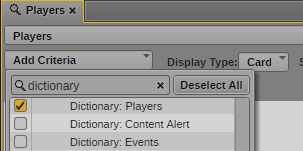
Search for logs through a MAM thesaurus | In some cases you might want to search for logs that contain an item that you know was imported from a specific MAM thesaurus. (A MAM thesaurus used as a data source is referred to as a dictionary in MediaCentral UX.) If you select a dictionary as a criterion, the contents of the dictionary are displayed and you can select one or more items. For example, a particular preset can include players whose names were imported from a MAM thesaurus. First select the dictionary. Each dictionary is preceded by the word Dictionary, so you can use the search function to find all dictionaries. The following illustration shows the dictionary named Players selected. Then select a player from the list, and search for all logs that include that player. The following illustration shows Daniel Brown selected. This feature is especially useful because you cannot currently use text search to search for an item imported from a MAM thesaurus. You can search for a player or other item by using plain text if the item was imported from a text file. |
Select future date and time | When working with the calendar in the Search pane, you can select a date and time in the future. This can be useful when setting up search presets. |
Media | Distribute
Feature | Description |
YouTube privacy settings | Media Distribute v2.7.1 allows you to set privacy settings for publishing videos to a YouTube v3 account. For more information, see the Media | Distribute Installation and Configuration Guide Version 2.7.1. |
Account icons in the Packages pane | Media packages in the Packages pane now display the appropriate account icon in the list of packages to be published. This allows you to see what kind of account created the package. For more information, see the Media Distribute User’s Guide Version 2.7.1. |
MediaCentral UX Desktop
Feature | Description |
MediaCentral UX Desktop v1.3 | MediaCentral UX Desktop v1.3 includes new features and bug fixes. For more information, see the MediaCentral | UX Desktop Version 1.3 ReadMe. |
Installation and Configuration
Feature | Description |
System Health Check | The Health Check script now includes “-c” and “-h” options that can be used when running the script: • Running the script with no options collects the most communally requested set of data to troubleshoot issues with Avid Customer Care. Example: avid-system-check • When the “-c” option is used, additional information such as low-level processes is collected which might be useful when troubleshooting specific issues. Example: avid-system-check -c • The “-h” option displays the script’s help page. Example: avid-system-check -h For information, see “Using the MediaCentral Health Check Script” in the Avid MediaCentral Platform Services Installation and Configuration Guide. |