Accessing the iNEWS Database
The iNEWS database is the backbone of your iNEWS system. You save the data created in your newsroom — stories, scripts, and rundowns — in the database on the iNEWS Server. Queues contain stories, and directories (also known as folders) store the queues.
When viewed with the mobile application, available iNEWS systems appear in the sidebar, along with any of their directories and queues. For MediaCentral UX v1.7 and later, queues marked to automatically refresh when changes are made display without pagination in the sidebar. You can scroll continuously to view all stories in these queues.

If the queue contains more than 1000 stories, it might take some time for MediaCentral UX to receive and display them. You might need to increase the Request Timeout value in the MediaCentral UX settings. For more information, see
Customizing MediaCentral | UX Settings.
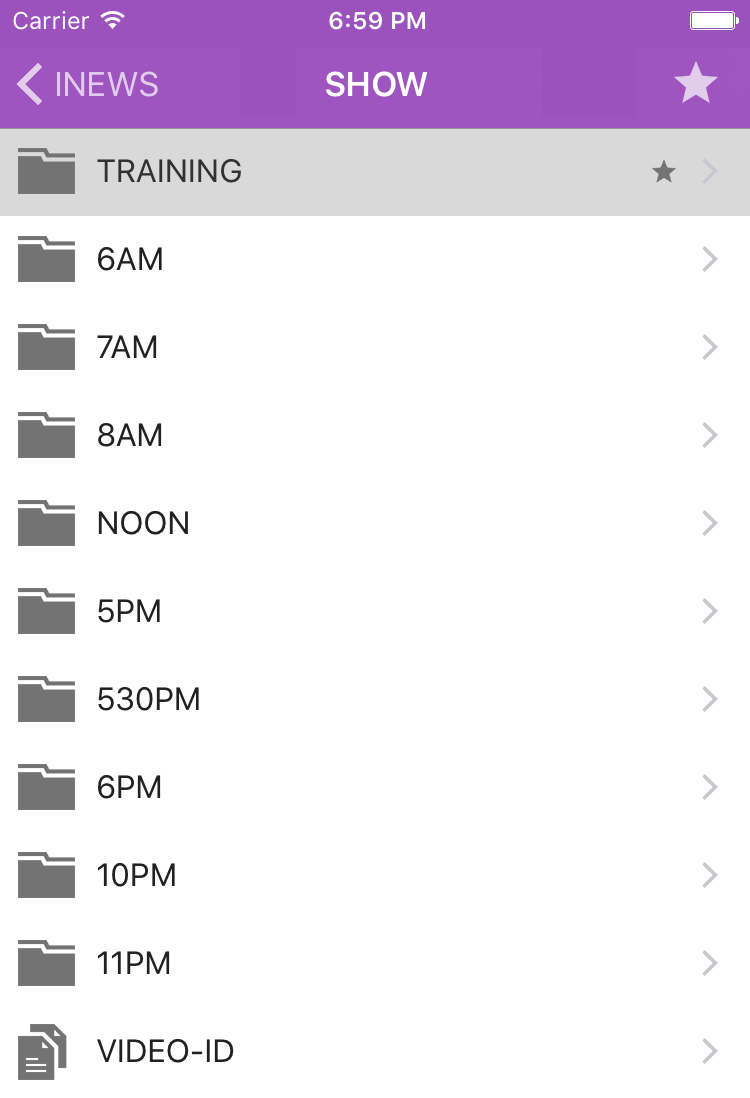
The application uses different icons to distinguish between directories, queues, and stories.
Icon | Description |
| Directories hold queues or other subdirectories. Unlike queues, directories do not directly contain stories. For example, the Wires folder contains queues with incoming wire stories. |
| Queues let you organize stories in detailed categories. A show’s rundown is one example of a queue. |
| Stories — for example, wire stories — contain text, such as contact information or a description of a news event. Any story can become a script for a show. Scripts contain additional data beyond text, including production cues, machine control instructions, presenter instructions, and associated video sequences. |
Destinations in the iNEWS system directory selected for the Favorites list have a star on the right of the directory, queue, or story.
While viewing the top level of an iNEWS system directory in the sidebar, the Back button displays the word Launch, which means you can tap it to return to the previous view of the Launch pane. However, the button’s name changes the further you navigate down the system directory.
You can open directories, queues, and stories from the MediaCentral UX mobile application. Directories and queues open within the sidebar. Stories open to the right of the sidebar in the Script Editor.
If you want to open an iNEWS story or queue that has a key lock applied to it, you must type in the appropriate password.
To open a directory:
1. Navigate to the directory.
2. Tap a folder on screen to open it.
As you navigate the system’s directory structure, the application displays your path or location within the database at the top of the screen.
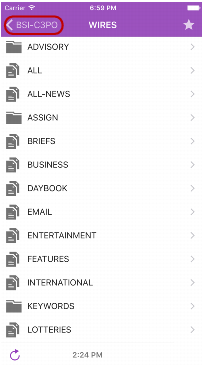
The following illustration shows the Wires directory opened to view numerous queues containing incoming wire stories.
Wires directory on the BSI-C3PO iNEWS server, with the back button at the top of the list
To back out of a directory or queue:

Tap the Back button.
The Back button does not display the word “Back” on it, but rather the name on the button changes as a user navigates further into the directory.
To open a queue:
1. Navigate to the queue inside a directory.
2. Tap the queue to open it.
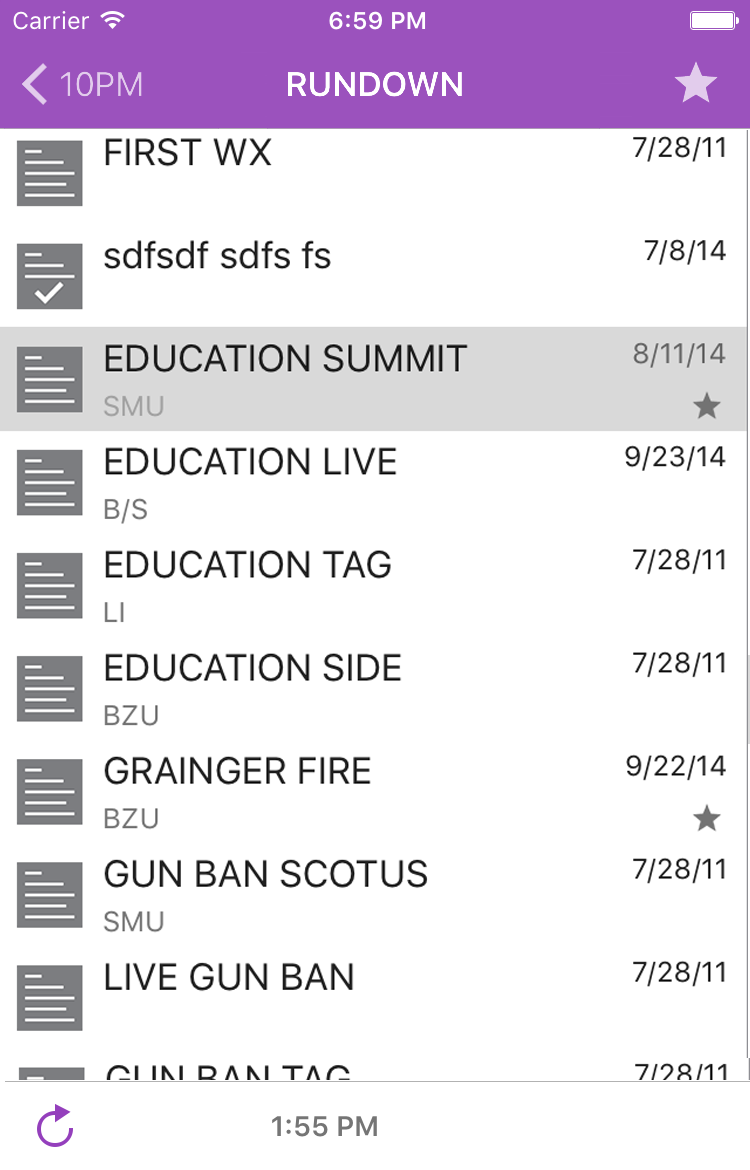
The following illustration shows an example of a rundown queue.
To open an existing story:
1. Navigate to the story in a queue.
A story icon with a check mark indicates that the story has been “approved.” You can approve stories from an iNEWS workstation or from MediaCentral UX.
2. Tap the story to open it.
The story opens in the Script Editor, which has two sections:
- The Story, which contains the text of the story, any presenter instructions, and production cue markers.
- The Cue List, which contains any production cues or machine control instructions.
The following illustration shows the Script Editor open with the Story section displayed containing a story with production cue markers identified numerically.
Presenter instructions appear as red text in the body of the story.
3. While viewing the story, swipe left to view the Cue List.
The numerical production cue markers within the story align with production cues and machine control instructions displayed in the Cue List to the right of the story. Black text indicates production cues. Blue text indicates machine control instructions (if any).
Because of limited screen size on the iPhone, the mobile application does not display the sidebar with the Script Editor. To view the sidebar at any time, swipe right from the Story section or use the Show/Hide button (see
The Sidebar).
To reload a story:
1. 
Tap the Actions button.
2. Tap Reload.
To adjust the size of the text of your story:
1. 
Tap the Change Text Size button.
The Change Text Size controls open.
2. Do one of the following:
Tap the smaller letter icon to reduce the text size.
Tap the larger letter icon to increase the text size
You can tap the letter icons multiple times to reduce or increase text to the appropriate size.
3. Tap Done.
To add a new story:
1. Tap the story in the queue below which you want to insert the new story.
2. 
Tap the Add Story button, located at the bottom of the sidebar.
The Edit Slug dialog box opens.
3. Add a name for the story, and then tap OK.