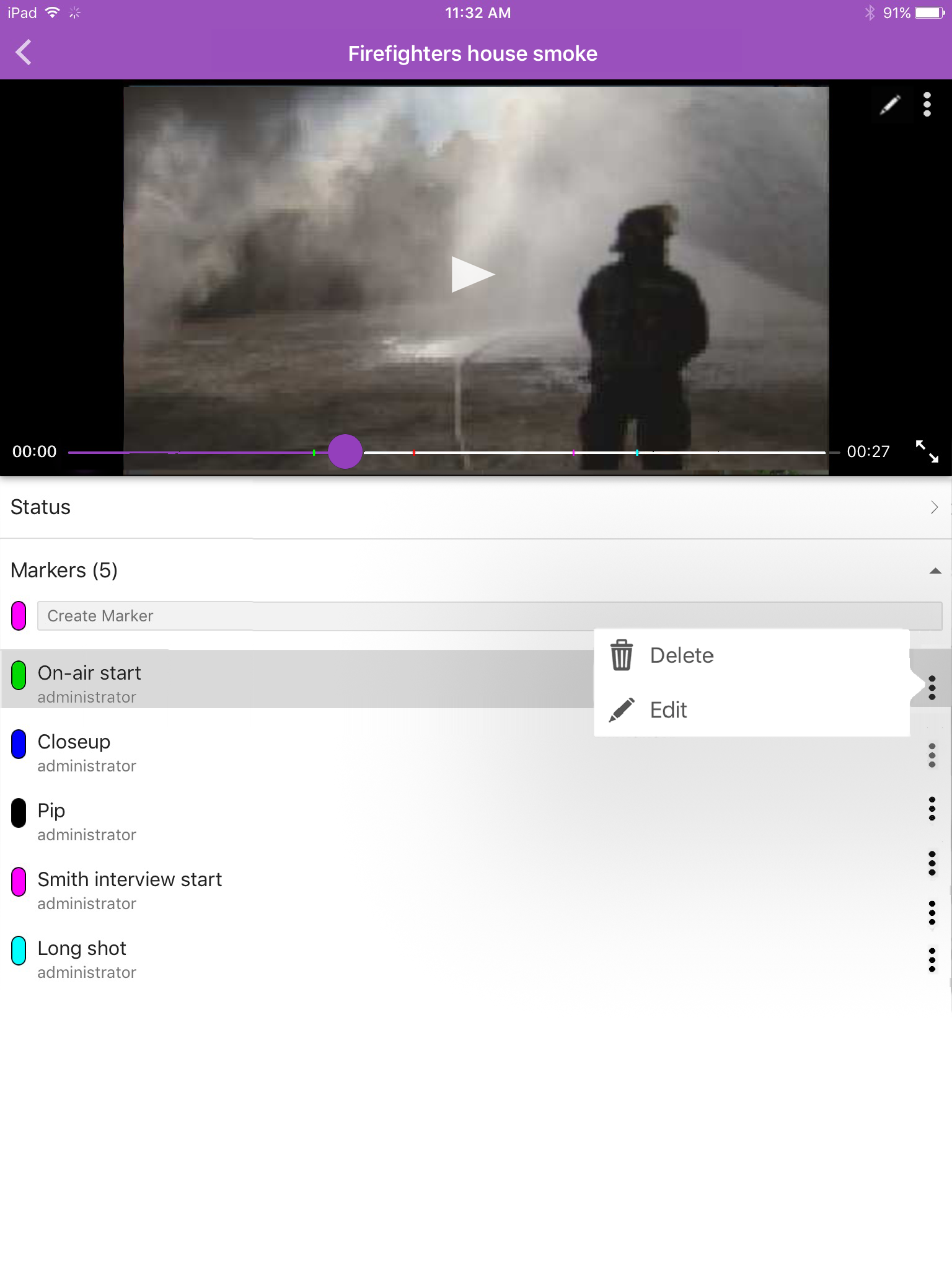
Creating and Editing Markers
Users who have the necessary permission assigned to them by their Interplay Production administrator can create, edit, and delete markers. You can add markers to media assets by playing the video and clicking the Create Marker button at the appropriate place, or you can scrub to a specific location in the media and then click the Create Marker button.
In MediaCentral UX, you can add markers to clips, subclips, and sequences stored in the Interplay Production database. Markers that you add to a sequence are associated only with the sequence. They are not automatically associated with the corresponding master clips used in the sequence. Similarly, a marker added to a subclip is not added to the associated master clip.
To create a marker, do one of the following:
1. Load a video in the Media player.
2. Do one of the following:

Tap the Play button, and then tap the Create Marker button in the player and select Create Marker when the playhead reaches the appropriate location. You can also click the Create Marker button below the media player.
Tap in the timeline to scrub to the location where you want to add a marker, and then tap the Create Marker button in the player and select Create Marker. You can also click the Create Marker button below the media player.

If no cache exists for the video yet, the playhead does not move to the location in the timeline. Once a sufficient buffer has been created, scrubbing to a specific location works as expected.
A marker is added and the Marker view opens in edit mode.
3. Type the text you want for your marker in the Notes field.
4. Tap the Done button.
Text is saved, the marker is added to the timeline, and you exit edit mode.
You can cancel the marker creation by tapping outside the Notes field.
To edit an existing marker:
1. Tap the Edit Marker button for the marker you want to edit.
The playhead moves to the marker location in the timeline and the Marker menu opens.
2. Tap Edit.
The Marker view opens in edit mode.
3. Use the keyboard to edit the marker text.
4. Tap the Done button.
Text is saved and you exit edit mode.
You can cancel your edit by tapping outside the Notes field.
To delete an existing marker:
1. Tap the Edit Marker button for the marker you want to delete.
The Marker menu opens.
2. Tap Delete.
The marker is deleted from the clip or sequence, and the marker is removed from the timeline.