Viewing Media Assets with MediaCentral | UX
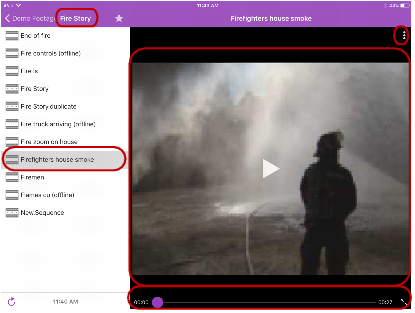
You can open directories and media assets stored in the Interplay Production database using MediaCentral UX. Directories and a list of assets open within the sidebar. You can view and play assets in the Media viewer.
Media viewer — top: selected directory, Action button; middle: selected asset, Media player; bottom: Media controls
To open a directory:
1. Navigate to the directory.
2. Tap a folder on screen to open it.

As you navigate the system’s directory structure, the app displays your path or location within the database at the top of the screen.
The following illustration shows the News Media directory opened to view one subdirectory and multiple media assets.
News Media directory on the Interplay Production server, with the back button at the top of the list indicating the parent directory
To back out of a directory:

Tap the Back button.
The Back button does not display the word “Back” on it, but rather the name on the button changes as a user navigates further into the directory.
To open and play a media asset:
1. Navigate to the asset in a directory.
2. Tap the video or audio asset.
The asset opens in the Media viewer.
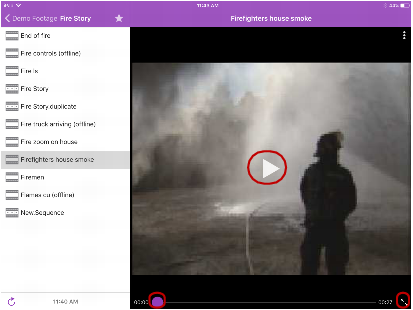
Media controls: Play button, position indicator, Full Screen button
3. Tap the Play button to play the asset.
4. If you want to scrub through the media asset, or if you want to jump to a specific position in the clip, tap and hold the position indicator and drag it to a new location.
5. If you want to view a video clip in full screen mode, tap the Full Screen button.
The Media viewer expands to fill the tablet screen and the video clip starts playing.