Working with Favorites
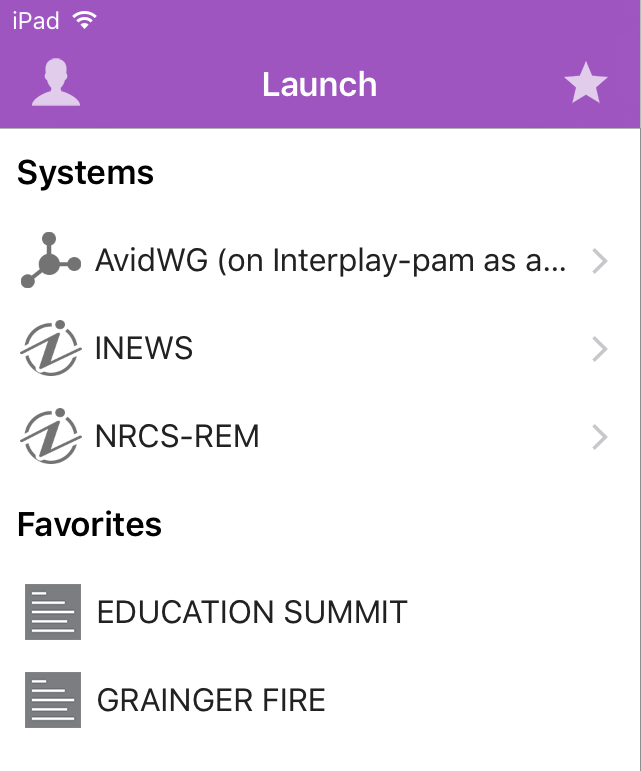
To make navigation easier, you can designate certain locations in the newsroom system or Interplay Production as Favorites, which appear in a list on the Launch pane.
From the tablet app, you can use your Favorites list to navigate quickly to your most often used assets, directories, queues, or stories. You can edit your Favorites list by creating new ones, editing their names, or deleting existing ones from the list.
To create a Favorite:
1. 
Tap the Edit button.
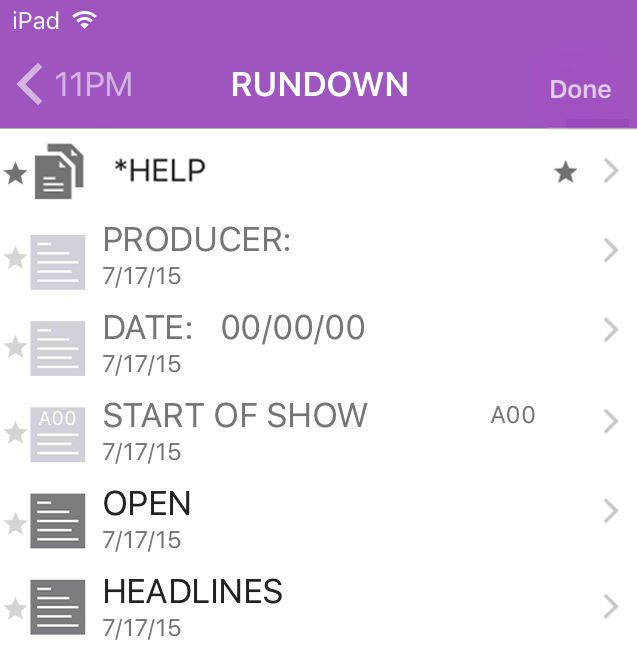
2. Tap the gray star next to the directory, asset, queue, or story you want to designate as a favorite destination. You can select more than one at a time.
3. Tap the Done button.
All selections appear in your Favorites list in the Launch pane. A star appears next to each icon of favorite destinations in the system directory.
To edit the name of a Favorite:
1. Tap the Edit button.
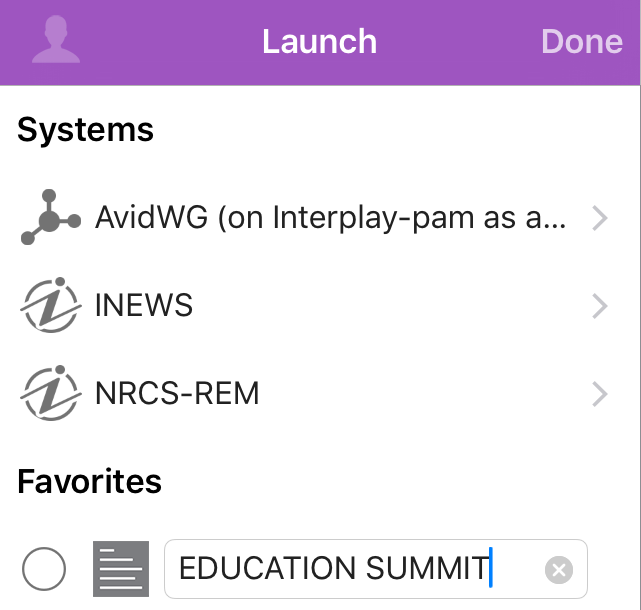
2. Tap the name in the list you want to edit.
3. When the cursor appears, you can change the name.
For example, if you plan to have multiple rundown queues in your Favorites list, some might share the same queue name. You can edit each one in the list to distinguish which rundown applies to the morning show, midday show, and evening newscast.
4. Tap the Done button.
The name of the Favorite changes. This does not affect the name of the asset, story, queue, or rundown in iNEWS or Interplay Production.
To delete a Favorite:
1. Tap the Edit button.
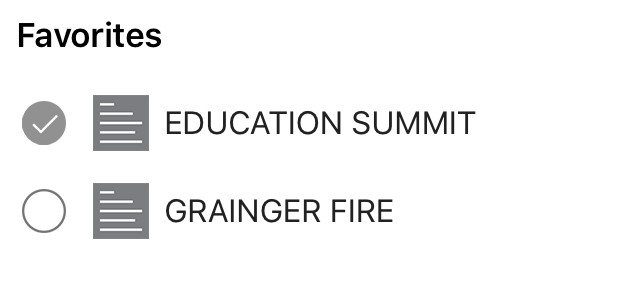
2. Tap to the left of the directory, queue, or story you want to remove as a favorite destination. You can select more than one at a time.
The selected item displays a check mark next to the title; gray circles indicate those not chosen.
3. 
Tap the Trash button.
The app deletes the selected items from your Favorites list.
4. Tap Done.