The Project/Story Pane
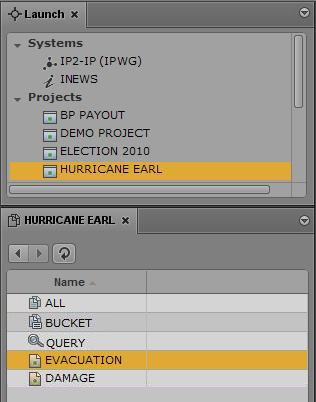
The contents of a project include an ALL queue, a QUERY queue, a BUCKET queue, and any sub-topics, known as facets. For example, the following illustration shows the Hurricane Earl project has facets for topics like Damage and Evacuation.
Every project has an ALL queue that displays in the Queue panel all stories associated with the project and its facets. Any indexed story can be associated with a project or facet.
Stories associated with a project retain their original source queue location in the iNEWS database; they do not actually reside in the ALL queue. Stories associated with a project also retain their original source permissions. For example, a user without read access to a story’s source queue will not be able to see that story in a project to which its associated, even if the user has read access to the project.
Every project has a QUERY queue, identified by the magnifying glass icon, which is the search queue that runs the project’s query. For more information on the icons used to identify projects and facets, see
Identifying iNEWS Directories, Queues, Projects, and Facets.
Every project has a BUCKET queue, which is an indexed queue that acts as the repository for stories that don’t exist anywhere else in the iNEWS database. A user can copy, create, and delete stories in the BUCKET queue. All stories in the BUCKET will show up in the ALL queue.

The BUCKET queue was first introduced in version 4.0 of iNEWS. When an iNEWS database is upgraded to v4.0 from an earlier version, current projects get BUCKET queues; however, these queues are not yet indexed, which is required for all stories associated with projects and/or facets. For more information, see the “iNEWS Projects” chapter of the
Avid iNEWS Setup and Configuration Guide.
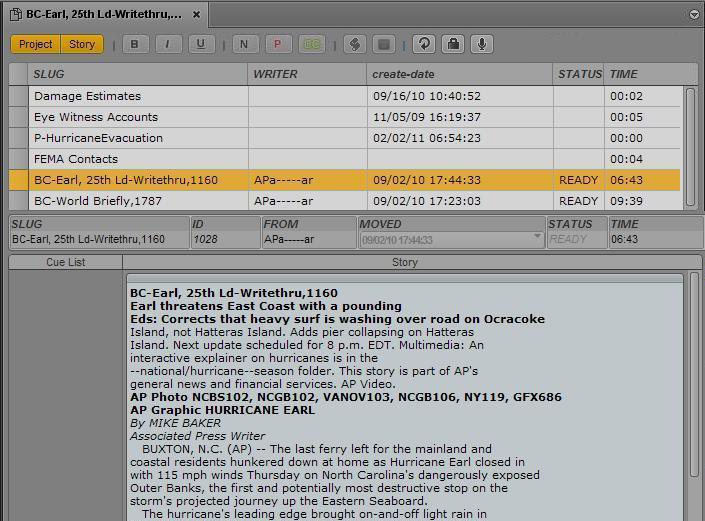
The Project/Story pane functions similarly to the Queue/Story pane. It can display either a project’s facet or a news story associated with that project’s facet. It can also display both at the same time, as shown in the following illustration:
The title that appears on the pane’s tab changes based on what is selected in the Project/Story pane.
Two buttons, Project and Story, are located at the top of the pane. Use these buttons to toggle on or off the display of the project or a story. When toggled on the buttons appear orange.
For example, while viewing a project’s contents, clicking the Story button splits the pane’s display space to show the project’s contents on the top half and the selected story associated with that project or facet on the bottom half of the pane. Clicking the Story button again hides the story and displays only the project’s facet or queue once more.
You cannot have both the Project and Story buttons toggled off simultaneously. When only one is on and the you click that button, the system automatically toggles it off and toggles the other button on.
The name on the tab of a Project/Story pane changes based on the story you have selected in the pane. You can move the mouse pointer over the tab to view the entire path name.
When only the facet or one of the project’s queues (ALL, QUERY, or BUCKET) is shown, the display is called a grid view. When only the story is shown in the pane, the display is called a story view. And when both are visible, the display is called a split view.
You can use the horizontal dividing line between the grid and story sections of the pane to adjust the ratio of the split view display within the pane. When you position your mouse pointer over the dividing line, the pointer changes to a double arrow, letting you click and drag it up or down to adjust the space allocated to each section of the pane. However, it is not recommended to use this technique to hide one section of the pane or the other.
The ratio you set is retained when you sign out.