Restoring an Asset from an Interplay Production Archive
Starting with MediaCentral UX v2.5, you can perform an indexed search that includes an Interplay Production Archive database. If you find that an asset and its media is archived, you can restore the asset and its media to your local Interplay Production database. You can then play and edit the asset.
There are several scenarios in which an asset needs to be restored, for example:
• The asset and its media does not exist on the local Interplay Production system.
• The asset exists on the local Interplay Production system, but the media is archived.
• The asset and low-res media exist on the local Interplay Production system, but the high-res media is archived.
To restore an asset in MediaCentral UX, the following are required:
• Your Interplay Production workgroup must be properly configured with the Interplay Restore service. The workgroup must also have the appropriate Interplay Restore templates available. Templates determine the destination server, the target video quality, and other options. For more information, see the Interplay Production Services Setup and User’s Guide.
• Your MediaCentral Platform server must be configured to perform an indexed search, and an Interplay Production Archive system must be available as a remote zone. For information on configuring Media Index, see the
Avid Media | Index Configuration Guide. For information on how to perform an indexed search, see
Searching for Assets.
If you know that an asset is archived, you can improve search time by selecting the Interplay Production Archive system as a system criterion.
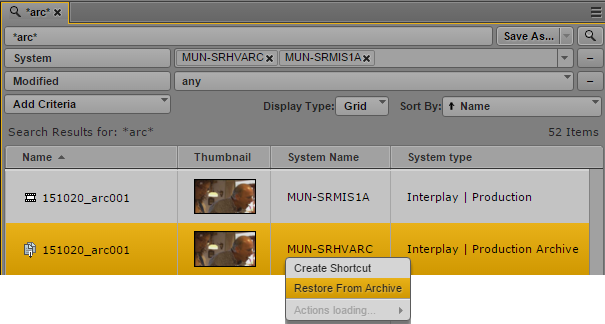
The following illustration shows the result of a search of both a local Interplay Production system and an Interplay Production Archive system. The highlighted asset is stored on the archive system. You can right-click the asset, and select Restore From Archive.
If you try to play an archived asset that does not have media on the local Interplay Production server, the following error message is displayed: “Asset not found in Interplay database.”
Note the following:
• You can restore only one asset at a time. Multiple selection is not supported.
• The metadata that is displayed in the search results list depends on how the MediaCentral administrator set up the indexed search. If markers are indexed they will be displayed in the search results under “Time-Based Metadata.”
• No content is shown in the Metadata pane or the Logging pane.
To restore an asset from an Interplay Production archive:
1. Perform an indexed search.
2. In the results list, right-click an asset and select Restore from Archive.
The Restore From Archive dialog box is displayed.
3. Select a profile from the Name menu.
Profiles are created by an Interplay Production administrator.
4. Click Restore From Archive.
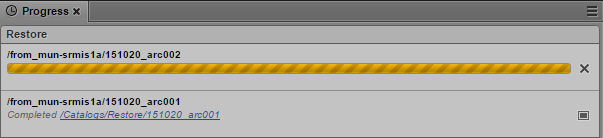
The job request is sent. You can check the status of the job in the Progress pane.
5. When the job is complete, you can play the asset in the Media viewer.