Controlling the iNEWS Monitor Server
The monitor server is a utility program that runs on the iNEWS server. When turned on, it checks its assigned rundown for machine control events, reports any errors, and creates a playlist. When “loaded,” the monitor server sends its playlist to a specified device automation system, such as iNEWS | Command.

MediaCentral UX v2.6.x and v2.7.x allowed users to turn the monitor server on and off but did not allow users to load the monitor server.
The Queue/Story pane toolbar includes a button labeled MON, which provides authorized users access to the Monitor dialog box.
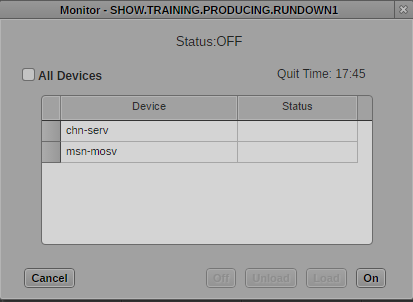
The Monitor dialog box provides options for controlling the iNEWS monitor server. Options in this dialog box depend on the status of the monitor. The following illustration shows the dialog box when the status of the monitor is OFF.
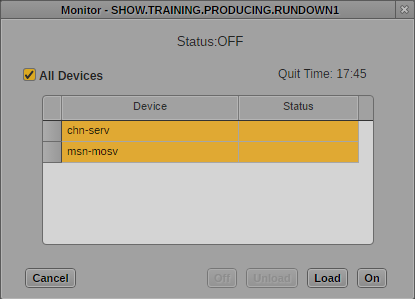
The Device list shows production devices that are configured for the selected queue. You can select one or more devices to load into the monitor. The Status column indicates the status of the device by color:
• Gray: Not loaded
• Orange: Selected
• Green: Loaded
The Quit Time displayed in the upper right is the time set by the iNEWS system administrator to automatically shut off broadcast control if either the producer or character generator operator forgets to turn the monitor server off at the end of the show. You can manually turn off broadcast control at any time by using the Monitor dialog box. You should manually shut off the monitor server when you are done with the show rather than relying on the automatic shutoff.
The MON button is disabled for MediaCentral UX users who do not have permission to invoke the monitor server. Positioning the mouse pointer over the MON button displays a tooltip that states “Current user does not have monitor permissions for this rundown.”
To control the iNEWS monitor server:
1. Click the MON button.
The Monitor dialog box is displayed in the state it was last set.
2. Do one of the following:

Click On to turn the monitor on.
The dialog box closes, and the MON button turns orange. While on, the iNEWS monitor server checks its assigned rundown, performing as much error checking as it can by comparing machine control events with styles located in the SYSTEM.RESOURCE queue, and without actually communicating with any broadcast equipment. The MON button turns red if errors are discovered.
Select a device by clicking the device name. To select more than one device, hold down Control while you select up to three devices. To load all devices, click All Devices. After you have made your selections, click Load.
The dialog box closes, the MON button turns yellow, and then green, to indicate that the selected devices are loaded. In addition to checking the status as described in the previous option, the monitor downloads the playlist to the selected devices. If you click the MON button, the Monitor dialog box shows the status as LOADED.
Click Unload to clear the playlist from the devices without turning off broadcast control.
Click Off to turn off the monitor server. This option overrides the automatic shutoff time that appears in the Quit Time field.

To avoid having a user accidentally turn off a loaded monitor server, Avid recommends using group security (in MAP story for rundowns) to ensure only specific users have permission to invoke the monitor server from the MediaCentral UX interface. For more information on group security, see the
Avid iNEWS Setup and Configuration Guide.