Grouping Stories
You can group stories within a queue to link them together. For example, a producer might want to link a presenter’s intro and tag before and after a reporter’s package as a story group within a rundown. When stories in a queue can be grouped, a Story Group column appears as the second column in the Queue panel located next to first column of selector buttons.

You can only create groups from contiguous stories.
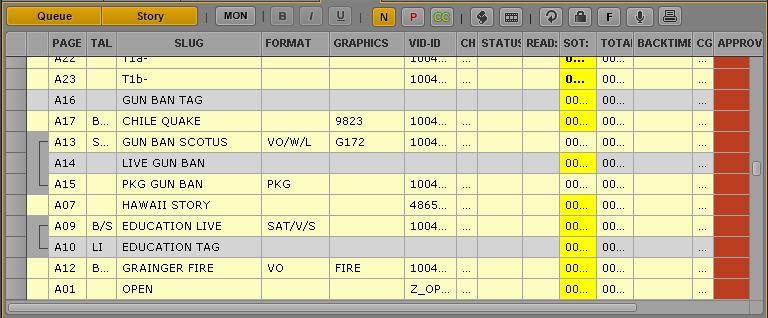
The following illustration shows two story groups: the first with three stories about a gun ban, and the second with two stories about education.
After you create a group, you can move the group together within a queue. You can also create stories within an existing group or remove them from a story group.
To create a group from existing stories:
1. In the Queue/Story pane, shift+click to select two or more consecutive stories.
2. Do one of the following:

Right-click and select Create Story Group.
Click the Pane Menu button, and select Create Story Group.
Press Ctrl+Alt+G.
To add a story or stories to an existing group, do one of the following:
Position your cursor within the group and create a new story. Creating a new story between rows of a group adds the new story to that group.
Drag a story or a selection of stories and drop them between the rows of a group.
If the story you want to add is located in the row directly above or below the group to which you want to add it, select it along with the story group, then right-click and select Create Story Group.
To remove a story from a story group, do the following:
Select the story, and then drag it to a new location in the queue.
To move a story group:
1. In the Queue/Story panel, click any square within the Story Group column to select the group.
2. Drag and drop the group into its new location within the queue.
You can drag and drop a story group anywhere within a single queue or from one queue to another in a different workspace and group associations are retained.
To ungroup a group of stories, do one of the following:
In the Queue/Story panel, right-click any story within the group and select Dissolve Story Group.
Click the Pane Menu button, and select Dissolve Story Group.
Press Ctrl+Alt+V.