Using Annotation to Dictate a Story
The Annotation feature allows users to dictate their stories, using the Chrome browser's Speech-to-Text technology.

This feature requires a connection to the Internet, and it is only available on Windows-based computers with Google Chrome, not Apple computers with the Safari browser.
To use the Annotation feature to write stories:
1. Open a blank story and place your cursor in a segment.
2. Click the Annotate button.
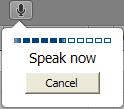
A speech bubble appears below the button, instructing you to begin speaking. The speech bubble also displays an audio level bar and a Cancel button.
3. Speak clearly.
If you want sentence punctuation in your text, you can type it in later, or you can say what punctuation is needed as you speak. For example, if you want the text to be Hello, I’m Jane Doe., then you would need to say, “Hello comma I’m Jane Doe period.” The system punctuates contractions for you.
For best results, conduct your dictation in a location without much background noise. When you finish talking, the system transfers your speech into text starting at your cursor position.
A pause in your speech can stop the annotation. To continue, click to position your cursor and click the Annotate button.
4. After your text is displayed in the Script Editor, you can edit the text as needed.