Selecting Audio Monitoring Preferences in Asset Mode
The Audio pane includes special controls for audio monitoring of group clips.
When you load a group clip in the Media pane and select Asset mode, the Audio pane displays audio tracks for the group clip and controls to set your monitoring preferences. The following controls are displayed only for group clips:
• A track selector for each track in the group clip. The track selector uses a drop-down menu that lets you map the audio track to the corresponding audio track in any angle in the group clip.
• The Audio Follows Video button, which lets you map all audio tracks to tracks from the clip selected as the active angle. “Audio follows video” is a shortcut that allows the audio mapping for a track to automatically “follow” any active angle change and use the audio from the new active angle.
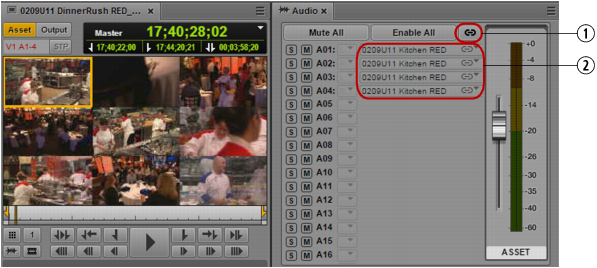
The following illustration shows controls in the Audio pane when a group clip is loaded. There are four track selectors, representing four audio tracks in the group clip.
1 | Audio Follows Video button | 2 | Audio Track Selectors |

The number of track selectors shown represents the maximum number of tracks in any of the clips that compose the group clip. For example, if some clips contain two audio tracks, and some clips contain four tracks, there will be track selectors for four audio tracks.
Audio Follows Video
In the previous illustration, angle 1 is the active angle for the group clip. The master clip for this angle is named “0209U11 Kitchen RED,” which matches the names of the audio tracks that are selected. This is an example of “audio follows video,” which is indicated by the link icon on the track selector drop-down menu.
Enabling and Disabling Tracks
By default, all tracks are enabled for monitoring, as shown by gray S (solo) and M (mute) icons. You can select which tracks you want to monitor through the various controls. For example, to monitor a single track (solo a track), click the S button for that track. The other tracks are muted, as indicated by the dark orange M buttons. The following illustration shows only track A01 monitored.
Controls for monitoring include the following:
• Click the S button to solo one or more tracks.
• Click the M button to mute one or more tracks.
• Click the Mute All button to disable all tracks for monitoring.
• Click the Enable All button to enable all tracks for monitoring.
For more information on monitoring in the Audio pane, see
Using Audio.
Mapping From Other Clips
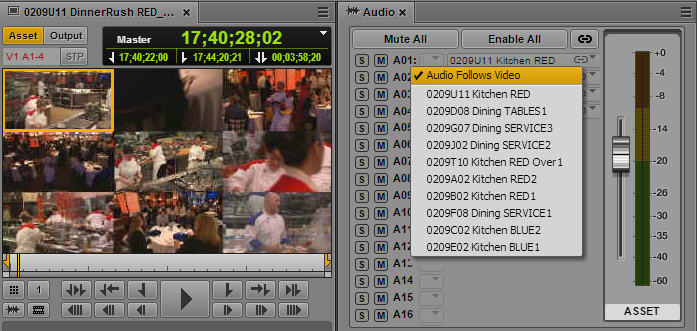
You can use the drop-down menu for each audio track to select audio from the corresponding audio track in any other clip in the group clip. The following illustration shows that Audio Follows Video is set for track A01, with a choice of audio from all angles in the group clip.
The order of the angles in the drop-down menu matches the order of the group clip as it was created in the Avid editing application. This list can include audio-only clips if at least one source clip includes video. Audio-only clips are not displayed in the Media viewer.
You can map audio for a specific track by selecting an angle from the drop-down menu. To map all tracks to the same angle, Alt+click the desired angle.
The following illustration shows a customized mix in which angle 1 is associated with audio follows video and audio from a different angle on alternating tracks.
The monitoring selections that you set are retained when you switch angles in the master clip. Custom monitoring is a user setting that is retained from session to session.