Using the Media Zoom Bar
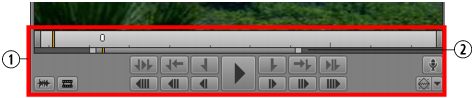
The Media zoom bar is located below the Media Timeline. You can use the zoom bar to enlarge a section of the Media Timeline so that you can work more easily with long clips. By default, the zoom bar is set to display the entire clip in the Media Timeline.

The Media zoom bar is similar to the Sequence zoom bar (in the Sequence pane), but the two zoom bars operate independently. The Media zoom bar is available to loggers who do not have access to the Sequence pane.
The Media zoom bar includes a position indicator that matches the position indicator in the Media Timeline and is always visible, which is useful when you are zoomed in to a section of the timeline that does not include the timeline position indicator.
The following illustration shows the zoom bar set for an entire 10-minute clip.
The following illustration shows the zoom bar set so that the timeline shows two minutes. This is referred to as the zoom region. Notice that the position indicator is displayed in the zoom bar, but is not visible in the timeline.
You can drag the zoom bar through the clip to select any two-minute region.
You can click the position indicator in the zoom bar and jump to the position indicator in the timeline. The zoom region moves to include both position indicators and to enlarge the section of the timeline that includes the position indicator.
You can click anywhere in the zoom bar to move the zoom region left or right.
If you drag the position indicator in the timeline, or if you play the loaded clip or sequence, the zoom bar and its position indicator match the movement in the timeline.
Click
Show Me to see a movie of these actions.
To zoom in to or out from a section of the Media Timeline, do one of the following:

Drag a zoom bar handle in to zoom in or out to zoom out.
Press the Down Arrow key to zoom in by 50 percent or press the Up Arrow key to zoom out by 50 percent.
Press Shift+Up Arrow to reset the zoom level to show the entire sequence.
Position the mouse pointer below the Media viewer and rotate the mouse wheel forward to zoom in by 50 percent or rotate the mouse wheel back to zoom out by 50 percent.
1. Area in which the mouse wheel controls the zoom region. 2. The zoom region within the zoom bar.