Displaying Captions and Segments
A
stratum allows you to view a media object from a specific perspective to consider its visual or editorial content.
Strata are annotation layers that build the basis for logging Interplay MAM assets: each stratum can be segmented, each segment is defined by an In and Out mark, and then these segments can be annotated. For more information about strata and segments, see
Understanding Strata.
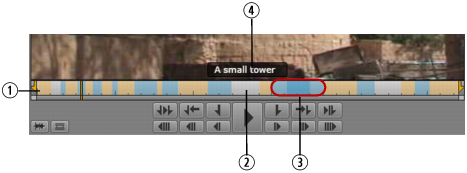
When you play an Interplay MAM video asset that was annotated in the Logging pane or Interplay MAM Cataloger, you can display stratum annotations of type “text” as an overlay in the Media viewer. You can select the stratum from which the annotations are displayed. The timeline in the Media pane shows alternating orange and blue sections that represent the individual segments of the selected stratum. Gaps between segments are represented by light gray sections, and overlapping segments by a darker shade of the same color.
1 | Segments of the selected stratum | 3 | Overlapping segments |
2 | Gap between segments | 4 | Annotation of the current segment |
To show captions and segments of an asset:
1. Load an Interplay MAM video asset in the Media pane in Asset mode.
2. Click the Pane Menu button and select Overlay Text.
3. Click the Pane Menu button, select Captions and select the stratum from which annotation shall be displayed as captions. If the stratum contains sub-properties of type “text”, select the desired sub-property.
The Media viewer shows the annotation of the current segment as an overlay. The Media Timeline shows all segments of the stratum as alternating orange and blue sections.
4. Navigate through the asset.

To step to the next segment border (the beginning of the next segment), press Shift+right-arrow key.
To step to the previous segment border (either the beginning of the current segment or the beginning of the previous segment, if the cursor is positioned directly at the segment border), press Shift+left-arrow key.
The overlay shows the annotation of the active segment.