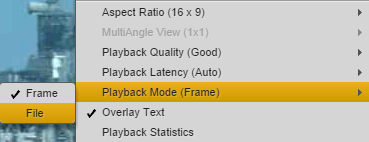
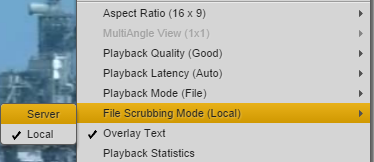
Selecting Frame-Based Playback or File-Based Playback
Earlier versions of MediaCentral UX used only frame-based playback. Starting with v2.1, MediaCentral UX includes an option to use file-based playback. The following sections compare the two types of playback and provide recommendations for when to use them.
• Frame-based playback: Media is encoded as a series of JPEG files that are streamed directly from the server for playback. This technique provides frame-accuracy and a smooth transition between cuts. Frame-based playback provides high quality but requires a higher bandwidth than file-based playback: from approximately 4Mbps to 25 Mbps, depending on the media and the playback options.
The following features are possible only with frame-based playback:
- Variable-speed playback
- Viewing and editing of in-process clips (edit-while-capture or growing files)
- Editing of advanced sequences
If sufficient bandwidth if available, frame-based playback is recommended for sequence editing.
• File-based playback: Media is encoded as a series of FLV files that are downloaded to your workstation for playback. File-based playback provides good quality in low-bandwidth situations. There are two options for file-based playback, as described later in this topic. The low option provides playback at 512 Kbps. The high option provides half-size HD screening quality at approximately 3 Mbps.
You can edit basic sequences using file-based playback. However, playback through the cut points is not necessarily exact or frame accurate, and you might see a slight pause as the position indicator passes the cut point.
For low-bandwidth situations, file-based playback is a recommended for:
- Searching and previewing
- Logging
- Review and approval
If you select file-based playback, you have an option for how to scrub an asset in the Media viewer:
• Server: This setting is a frame-by-frame scrub that retrieves additional media from the server. It provides a complete scrub by allowing you to accurately drag the position indicator to every frame of a video. However, this type of scrub might not work well in low-bandwidth situations.
• Local: This setting is a keyframe scrub that uses media already downloaded and cached on the local system. It provides a partial scrub by displaying only keyframes (I-frames) that represent a group of pictures (GOP). If you stop scrubbing, the frame where the position indicator is parked is displayed. Local scrub provides a less complete scrub than Server scrub, but works better in low-bandwidth situations.

File-based playback and Local scrubbing (referred to as Normal scrub in Interplay MAM) are the default modes for Interplay MAM assets. Your ability to select frame-based playback and Server scrubbing (referred to as Fast scrub in Interplay MAM) depends on Interplay MAM rules. The credentials you use to sign in to the Interplay MAM database determine if you are allowed to use frame-based playback and Server scrubbing.
Note the following:
• You can select the type of playback for assets loaded in Asset mode or for basic sequences loaded in Output mode.
• You cannot select file-based playback for advanced sequences.
• Variable-speed play (J-K-L play) is not available for file-based playback.
• When you load an asset for file-based playback, the Media Timeline displays additional information.
- A progress bar indicates that an asset is loading. Loading takes place from the position indicator to the end of the asset.
- A green line indicates a portion of the asset that is loaded and ready to play.
- No progress bar or line indicates a portion of the asset that has not yet begun to load. This might happen if you are editing, and media in a sequence before or after the position indicator does not need to be loaded. If you click or drag in the unloaded area, loading begins.
- Breaks in the green line indicate segment boundaries in a sequence (the start and end points of clips in the timeline). You might need to zoom in to see them.
• A MediaCentral administrator can configure the bit rate for file-based playback. See
Configuring File-Based Playback. The low bandwidth setting is available for both Interplay Production and Interplay MAM assets. The high bandwidth setting is available for Interplay Production assets only, through the MultiRez button. See
Playing Back at the Highest Resolution.
To select the type of playback:
1. Click the Media Pane Menu button and highlight Playback Mode.
2. The menu option shows either Playback Mode (Frame) or Playback Mode (File). If the type of playback you want is not shown, select the type of playback you want from the sub-menu.
If you select file-based playback, the File Scrubbing Mode menu option is displayed.
To select the scrubbing mode:
1. Click the Media Pane Menu button and highlight File Scrubbing Mode.
The option shows that either Server or Local is selected.
2. To change the scrubbing mode, select either Server or Local from the sub-menu.