Assigning User Tasks to Users and Groups
You can assign user tasks to another user or user group. This means that you can place a user or group in charge of performing the action that has to be performed during the process execution. Assignment does not change the access rights to the task; users who are not in charge may also perform the task, if they are allowed to perform it. Your ability to assign a task depends on rules: the process configuration must allow assigning the selected task.
Use the Tasks Details area to edit the task assignment. Depending on the configuration of the task template, you can set the following:
• Assignee: The name of the user to which the task is to be assigned.
• Assigned Group: The name of the group to which the task is to be assigned.
• Next User: The name of the user which is to be set as assignee of the next upcoming task.
• Next Group: The name of the group which is to be set as assigned group of the next upcoming task.
Additionally information on the Previous User (the performer of the previous user task) and Previous Group (the group that was set as performer of the previous user task) can be shown. These are read-only properties and cannot be edited.
To assign tasks:
1. Select a task in the Task List.
The Task Details area shows the metadata fields that are configured for the task.
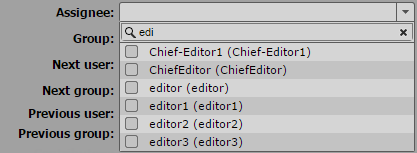
2. Click in the Assignee, Assigned Group, Next User, or Next Group field and start typing the name of the name or group in the search box to filter the list.
When you type a letter, MediaCentral UX filters the list to all values containing that letter. As you continue to type, MediaCentral UX continues to filter the list according to the letters you type.
3. Do one of the following:

Double-click the value or check its check box.
Navigate down the list using the Down Arrow key until you reach the desired value and press Enter.
The field shows the real name with the user’s login name or group ID in brackets.
4. Click outside the metadata field.
The Task List is refreshed and shows the corresponding assignment information. If you filled in the Assignee or Assigned Group field, a copy of the task with set Task End date is created. It is shown in the Task List if the filter is set to show completed tasks.