Creating Associations
You can create new associations in the Associations pane: either relating already created assets or adding relations to new assets by uploading files to Interplay MAM. Note the following limitations:
• You must have the proper permissions in Interplay MAM.
• Which asset types can be associated is defined and restricted by the underlying Interplay MAM data model.
• You can only associate assets from the same Interplay MAM system.
• Your ability to upload files depends on Interplay MAM user privileges and rules.
To allow previewing assets without loading them in the Associations pane (for example, for a review before setting the association), the current asset can be pinned: if the asset is pinned, loading new assets is ignored.
To associate already created assets:
1. Open the asset for which you want to create new associations in the Associations pane.
2. To turn pinning on, click the Pin button so that it turns orange.
3. Expand the associations types in the Associations List.
4. Display the assets you want to use for creating new associations in other panes:

Open the folder containing the assets in the Assets pane.
Search for the assets in the Search pane.
Open the asset in the Media pane.
Open the Tasks pane and display the attachments of a task.
Open the Messages pane.
5. Do one of the following:
Click one or several assets in the Assets pane and drag them to the associations of the desired association type in the Associations pane.
Click one or several assets in the Search pane and drag them to the associations of the desired association type in the Associations pane.
Click the asset displayed in the Media viewer in Asset mode and drag it to the associations of the desired association type in the Associations pane.
Click one or several assets in the Task pane’s assets area and drag them to the associations of the desired association type in the Associations pane.
Click the asset attached to a message in the Messages pane and drag them to the associations of the desired association type in the Associations pane.
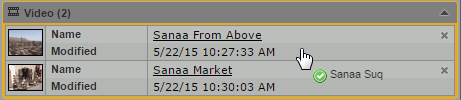
The associations (or the Drop Assets Here area, if there is no association until yet) are highlighted in orange, and a green icon indicates if dropping is possible.
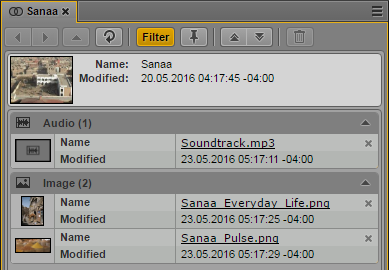
For each association an asset card is shown. A head frame of the video asset or a clip icon of an audio asset is displayed, along with metadata describing the asset and a link that you can use to open the associated asset in the Associations pane.
If you dragged an invalid asset type or an asset that is already associated, a message is displayed and the association is not created.
To associate new assets:
1. Open the asset for which you want to create new associations in the Associations pane.
2. Click the Pane Menu button and select Actions.
3. (Optional) Select the MAM system on which the process is to be created.
4. Select the Upload File process type and then the “Upload file” menu item.
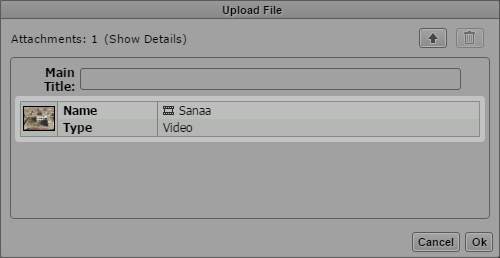
The Upload File process creation dialog box opens. It shows the asset for which you create associations as an asset card.
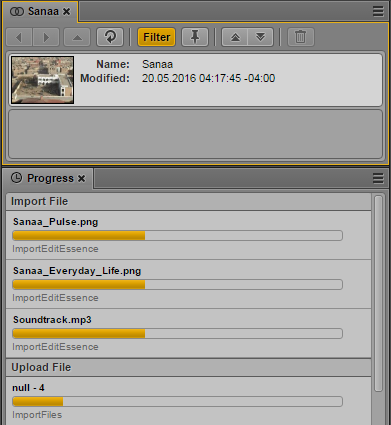
5. (Optional) Provide a name of the process in the Main Title field. This name is shown in the Progress pane. If you do not type a title, “null” is shown as process name in the Progress pane.
6. Click the Upload button in the process dialog box, select the files to be uploaded and click OK in the Open dialog box.
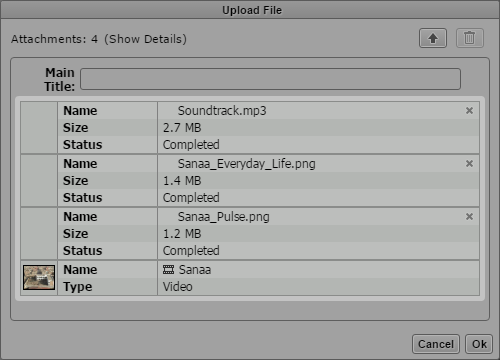
The Upload File dialog box shows the files you selected. Each file will be imported and registered as a new asset in Interplay MAM using the file name as main title of the new asset. Each new asset is associated to the selected source asset.
7. Click OK to close the Upload File dialog boy and start the upload process.
8. (Optional) Open the Progress pane and monitor the progress of the Upload File process.
9. When the file import is finished, click the Association pane’s Refresh button.
For each association an asset card is shown. A head frame of the video asset or a clip icon of an audio asset is displayed, along with metadata describing the asset and a link that you can use to open the associated asset in the Associations pane.