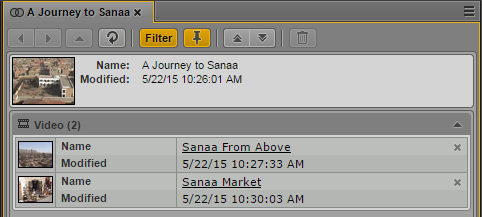
Filtering the Displayed Associated Asset Types
The Associations pane lets you see all associations of the asset currently open in the pane. By default, the pane shows all associated asset types that can be set for the asset. You can apply a filter to do the following:
• Show and hide associated asset types for which no associations are currently defined
• Show and hide specific associated asset types
Use the Add or Remove Filters window to formulate filters. Note the following:
• The filter window shows all associated asset types that are configured for the Interplay MAM system of the source asset that is open in the pane. It is not limited to the associated asset types that can be set for the asset.
• The filter window allows selecting and applying filters based on associated asset types and content. The groups are cumulative: You select the associated asset type and decide then if it has to be empty or populated so that it can be shown.
• The filter window does not prevent you from formulating an invalid filter (for example, if you deselect both content types). If you create an invalid filter, the Associations pane does not show any associated asset type at all after the filter is applied.
• The filter persists from one session to another.
To filter the displayed associated asset types:
1. Open the asset for which you want to see the associations in the Associations pane.
2. Click the Pane Menu button.
3. Select Add or Remove Filters.
The Add Or Remove Filter window opens. It shows the name of the system from which the source asset was opened. The filter list is divided in Association Types and Content.
4. Select the filter you want to apply or deselect the filter you want to cancel:

To apply an associated-asset-type filter, expand Association Types and select the associated asset types you want to show. All associated asset types are selected by default.
To apply a content filter, expand Content and select Empty or Populated. Both content types are selected by default.
You can use the search box to find a particular filter.
5. Click the Close box or click anywhere outside the window to save your settings and apply the filter.
The Associations pane shows the associations that match the selected filter. This setting persists from one session to another.
6. To display all associated asset types again, click the orange Filter button so that it turns gray.