Creating Subclips
You can create a subclip from a clip that you load in the Media pane and store it in an existing folder in the Interplay Production database. You can create the subclip by dragging and dropping or by using a dialog box.
After you create a subclip, the original clip remains in the Media viewer. This is useful if you are creating a series of subclips from the same master clip. A newly created subclip is automatically selected in the Assets pane. Double-click the subclip to load it in the Media viewer.

Creation of subclips from sequences or group clips is not currently supported. You can create a subclip from a subclip.
To create a subclip by dragging and dropping:
1. Set an In point and an Out point for a clip that is loaded in Asset mode.
2. In the Assets pane, display the folder in which you want to store the subclip.
If you want to store the subclip in a subfolder, open the parent folder. Starting with MediaCentral UX v2.8.1, hovering over a closed folder while dragging the thumbnail to the Assets pane does not open the folder.
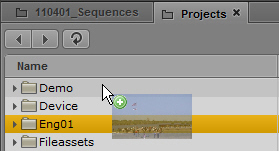
3. Click anywhere in the Media viewer and drag the thumbnail from the Media pane to the folder, or to the line in the Assets pane that holds the folder.
Use the mouse pointer to precisely indicate the target location. A green plus sign indicates a valid location for the subclip.
You can also click the Media Pane Menu button while you are in Asset mode and select Create Subclip. The Select Folder for Subclip dialog box allows you to specify a folder for the subclip.
The subclip is added to the database, with the extension .Sub added to the clip name. Any other subclips you create from the same clip include an incremented extension, for example, .Sub.01, .Sub.02, and so on.
4. (Option) Rename the clip by doing one of the following:

Select the subclip in the Assets folder, click the name of the clip, and type the new name,
Select the subclip in the Assets folder, press F2 (Windows) or Enter (Macintosh), and type the new name.
To create a subclip by using a dialog box:
1. Set an In point and an Out point for a clip that is loaded in Asset mode.
2. Do one of the following:
Click the Media Pane menu button and select Create Subclip.
With focus in the Media pane, press the S key.
The Select Folder for Subclip dialog box opens.
The subclip is added to the database, with the extension .Sub.01 added to the clip name. Any other subclips you create from the same clip include an incremented extension, for example, .Sub.02.
3. Select the folder or subfolder in which you want to save the subclip. By default, the folder that holds the master clip is selected.
4. A default name is supplied, with the extension .Sub added to the clip name. Any other subclips you create from the same master clip include an incremented extension, for example, .Sub.01, .Sub.02, and so on. Rename the clip if you want.
5. Click Create Subclip.
The subclip is added to the database.