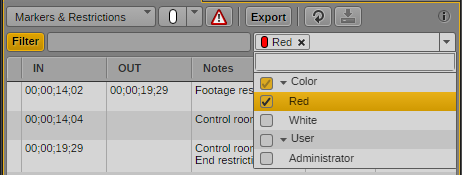
Filtering Interplay Production Logs
If a clip or sequence includes a large number of markers or log entries, you can use the filtering controls to display a subset of the list. You can filter by text, by marker color, or user.
Filtering does not apply to restrictions, which are always displayed.
To filter by marker or user:
1. Click the down arrow in the Filter Criteria list.
2. Select the criteria you want to use. You can select any of the available users or colors. This list is determined by the markers in the loaded asset.
The criteria are displayed as buttons in the Filter Criteria list, the Filter button turns orange, and the list is filtered.
After you set the criteria, you can turn filtering off by clicking the Filter button so that it turns gray. To turn filtering on again, click the Filter button so that it turns orange.
To remove a criterion, do one of the following:

Click the x on the criterion button.
Click the down arrow in the Filter Criteria list and deselect the criterion.
The list is filtered according to the new criteria.
To filter logs by text:
Begin typing text in the text box. The Filter button automatically turns orange. As you type, the logs are filtered according to the text you type. You can type more than one word. Unicode characters are supported.
After you set the criteria, you can turn filtering off by clicking the Filter button so that it turns gray. To turn filtering on again, click the Filter button so that it turns orange.