Recording an Audio Clip
You can use audio controls in the Media pane to record an audio master clip. This is an alternative way of recording a voice-over that gives you more flexibility than recording a voice-over for a sequence. To record an audio clip, you use the Media Pane in Asset mode.

This feature applies to Interplay Production assets only.
Adobe Flash Player
MediaCentral UX uses the recording function of the Adobe Flash Player to determine the input device used for the recording. The Flash Player automatically detects any default microphone or other audio recorder on your computer and uses that device unless you change it through the Flash Player settings. To access these settings, right-click anywhere in the Media viewer and select Settings. You can also change the input source from the Media Pane menu.
If you select a device different from the default system input device, then remove the device, you might need to manually change the Flash Player settings.
The first time you use the recording controls during a session, you see a message from the Flash Player asking for permission to let the MediaCentral UX server access your camera and microphone. Click Allow.
Interplay Administrator Settings
When you create a recording, the format is determined by two settings in the Interplay Administrator.
• Video Format setting on the Editing Settings tab of the Application Database Settings view.
This setting determines the frame rate. If the setting is Any, MediaCentral UX uses NTSC 29.97 as the default format. The following illustration shows the Video Format for the root folder set for PAL 25i.
• Audio - general settings on the Editing Settings tab of the Application Database Settings view
- Audio sample rate: Fixed at 48kHz
- Sample bit depth: Choice of 16 or 24-bit (16-bit is the default)
- Audio file format: Fixed as PCM.
The following illustration shows the bit depth set for 16.
These settings apply at the folder level.
To record an audio clip:
1. Click the Asset button in the Media pane.
The Voice-Over button is displayed in the lower right of the Media pane.
2. Click the Voice-Over button.
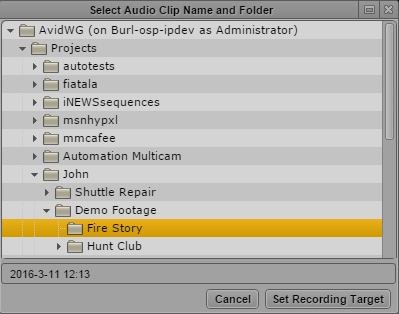
The Select Audio Clip Name and Folder dialog box is displayed.
3. Select the folder and clip name:
a. Select the folder in which you want to save the recorded clip.
Selection is limited to subfolders of the top-level folders.
b. Type a file name or accept the default (the current date and time).
c. Click Set Recording Target.
If a message from the Flash Player asks for permission to let the MediaCentral UX server access your camera and microphone, click Allow.
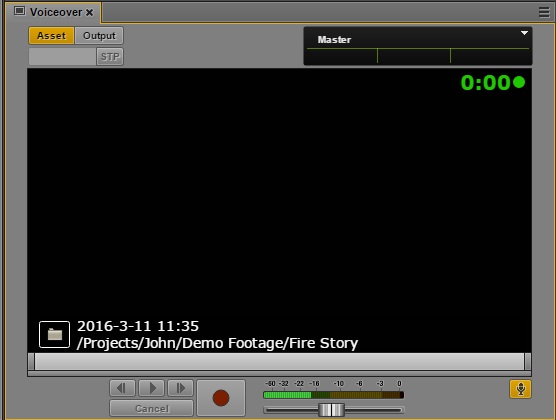
The Media pane shows the a timer and record indicator (small circle) displayed in green in the upper right. The file name and path are displayed as an overlay in the lower left. If you want to change the file name or location, click the file folder icon in the overlay. The Audio Clip Name and Folder dialog box is displayed and you can change the location or file name.
4. Click the Media Pane Menu button, select Input Source, and select the device you want to use for recording.
5. Adjust the recording device parameters to your preference, and use the volume slider to set the desired volume level.
6. When you are ready to record, press the Record button.
A three-second countdown is displayed in the viewer, audio pops mark each second, and the Record button flashes red. At the end of the countdown, the Record button remains red and the recording begins. The timer in the upper right turns red, and the recording indicator flashes.
You can monitor the recording level in the audio meter and adjust it as needed while recording.
Click Cancel to stop recording without saving the file.
7. When you are finished recording, press the Record button again.
An audio clip is created with the name and location you selected and is highlighted in the Asset pane.
The file name is automatically incremented by a final number in preparation for the next recording.
8. To exit the audio-recording controls, click the Voice-Over button.