Overriding the Default Audio Track Patching
An Interplay Production administrator sets the default source patching for NAT, SOT, and Voice audio on the Editing Settings tab of the Application Database Settings view. By default, track A1 is mapped to NAT audio, A2 is mapped to SOT audio, and A3 is mapped to Voice. If dual-channel support is enabled, A1 and A4 are mapped to NAT audio, and A2 and A5 are mapped to SOT audio.
You might need to change these settings for editing and output. For example, the NAT audio and the SOT audio might become reversed if a reporter’s microphone is recorded on the wrong track. When this happens, the NAT sound takes the place of the SOT track, and if you disable the NAT track the SOT is disabled instead. You can change (or swap) the NAT and SOT tracks to compensate for this problem. These changes override the source audio patching.
When you override the default NAT or SOT patching, only the active clip in the Sequence Timeline is modified. Other clips that you added to the Sequence Timeline from the same source clip remain unchanged.
To override the default source audio patching:
1. Right-click an audio clip in the Sequence pane and select the track you want to change.
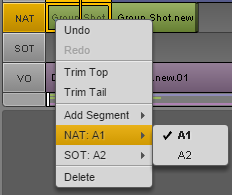
The menu shows the currently selected audio patching. The following illustration shows a clip with two audio tracks that uses the default mapping. A check mark shows the selected source track. Bold text indicates the default audio patching.
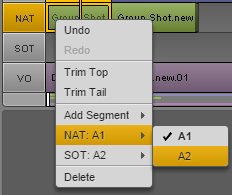
2. From the submenu, select the source track you want to use.
For example, to swap the default NAT and SOT tracks:
- Select NAT A1 > A2.
- Select SOT A2 > A1.
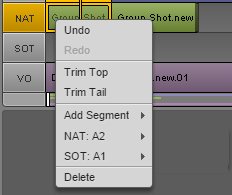
The menu shows the new patching.
 For information about setting the default audio patching, see Configuring Settings in the Interplay | Production Administrator.