Using the Assignment Desk Layout
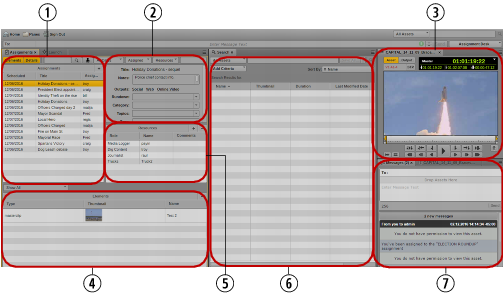
When you have configured the Assignment pane, you can create, edit, and manage your assignments using the Assignment Desk layout in MediaCentral UX. The following illustration shows the Assignment Desk layout. For more information on using the Assignments pane, see
Create and Manage Assignments.

You can customize MediaCentral UX by adjusting a layout’s areas and panes. A single area can contain one or more panes. When an area contains more than one pane, the panes are displayed in a tabular format, with one pane on top of the others.
| Pane or Area | Description |
1 | Assignments list | A list of all assignments. You use the Assignments list to create, edit, clone, and delete assignments. |
2 | Details area | An area where you can add notes to assignments, select rundowns, and you select categories and topics to your assignments. |
3 | Asset pane | A pane in which you can view and edit media assets. The controls that are displayed depend on the selected asset. |
4 | Elements area | An area that provides a list of supporting elements to your assignment. You can add elements from any MediaCentral database. |
5 | Resources area | An area where you can add resources to your assignment by selecting roles for the types of resource you want to add and names from a list of available users. You can also add comments to help in directing work on the assignments. |
6 | Work area | An area where users can load the iNEWS Rundown pane or the Media Distribute Social Messages pane for multi-platform publishing. |
7 | Messages pane | A pane that displays a message box for sending both text messages and media asset links. It also lists all received messages, with the most recent messages at the top of the list. |
To open the Assignment Desk layout, do the following:

Click the Layout selector and select Assignment Desk.
To open a new pane:
1. Select the Panes menu.
2. Select the menu option corresponding to the pane you want to open.
The pane you select opens in the active area.