Setting the Approval Status for Assets
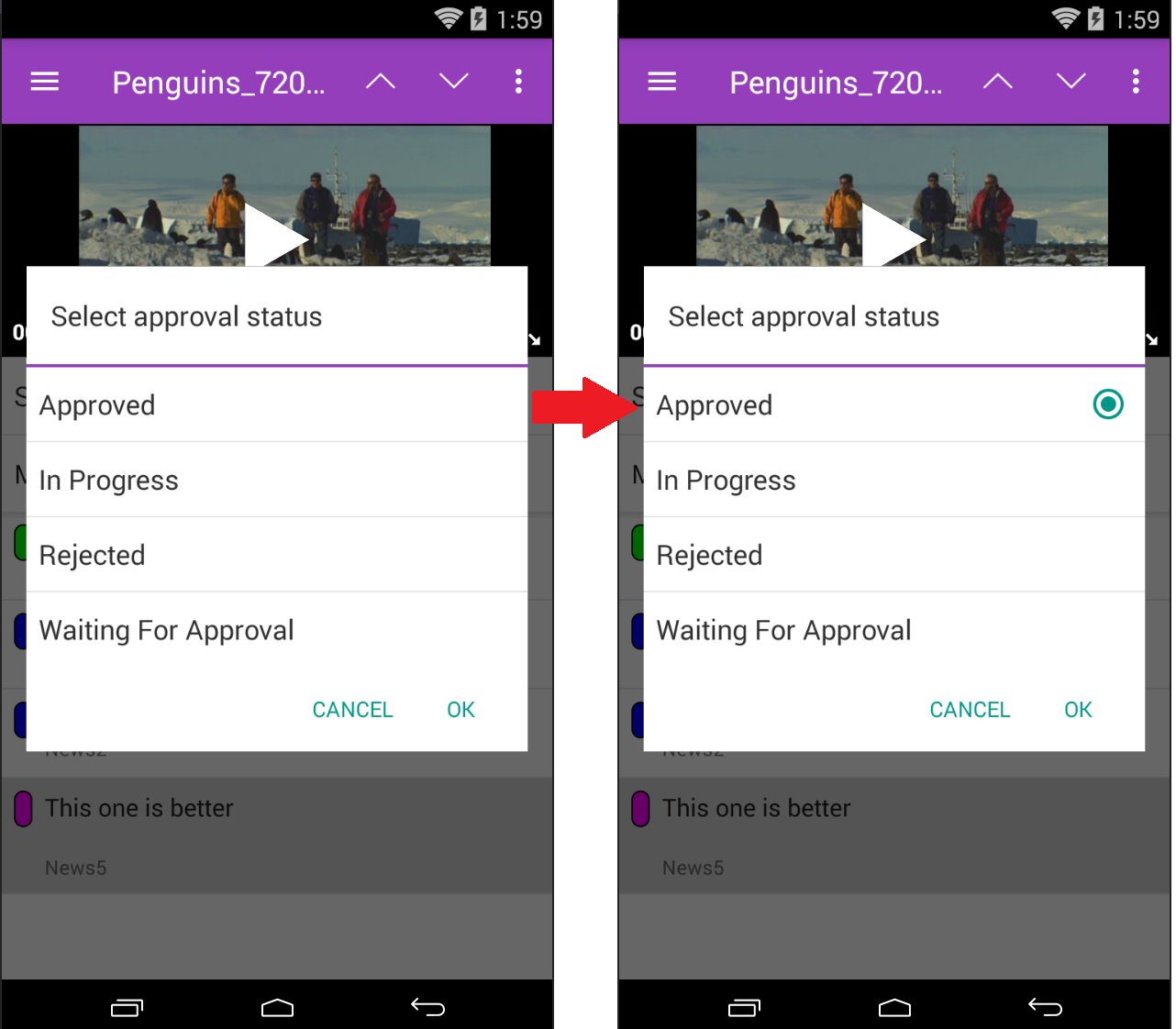
When enabled through the Interplay Administrator tool, a Status bar introduced in MediaCentra UX Mobile for Android v2.10 appears between the Media viewer and the Markers list. Tapping the Status bar displays the “Select approval status” window:
As shown in the image on the left, assets are not associated with a default status.
The approval status window displays a list of options that can be customized as desired. When the user taps an item in the list, a green circle appears to the right of the selection. Tapping OK saves the selection.
To access the Status bar, your system administrator needs to create a custom property in Interplay Administrator named “Approval_Process” and import a manually created XML file that includes the status options. The options described in this example are: Approved, In Progress, Rejected, and Waiting for Approval.

While the value names can be customized, the custom property in the Interplay Administrator must be called “Approval_Process”.
To create the approval status XML file:
1. On a desktop system, create a new text file with an application such as Windows Notepad.
2. Add the following information to the text file:
<?xml version="1.0" encoding="UTF-8"?>
<!DOCTYPE values SYSTEM "custom_attributes.dtd">
<values description="Approval Process">
<value name="In Progress"/>
<value name="Waiting For Approval"/>
<value name="Approved"/>
<value name="Rejected"/>
</values>
In the example above, the text for each value name (“In Progress”, “Waiting For Approval”, etc) is presented to the Mobile app user when selecting a status. If desired, the value names can be customized to accommodate local workflows.
3. Save the text file with an XML extension as in the following example:
approval.xml
4. Import the XML file to the “Approval_Process” custom property that was created in the Interplay Administrator.
For more information, see “Adding a Custom Property” in the Avid Interplay Engine and Interplay Archive Engine Administration Guide.