Starting MediaCentral | UX on the Android Device
When you install MediaCentral UX, an icon representing the application displays on your Android device’s home screen. If you previously set your MediaCentral account, you can connect to your MediaCentral server by selecting the MediaCentral UX icon on your device. To browse iNEWS or Interplay Production, you can sign in with your MediaCentral credentials.
MediaCentral UX supports iNEWS communities. The iNEWS Community feature allows customers with multiple iNEWS systems to share content and collaborate on stories.
The MediaCentral mobile application requires you to supply credentials to sign in to one iNEWS system. This system is considered your local system. If your local system is configured in an iNEWS community, you are able to automatically sign in to other systems in the community. These systems are considered your remote systems. In the MediaCentral UX navigation drawer, your local iNEWS system is listed first, followed by the remote systems. To connect to a remote system, tap the system name.
When you log in to MediaCentral UX, you might be required to accept Avid’s End-User License Agreement (EULA). The EULA appears when you first log in to a MediaCentral server or when you first log in after updating the MediaCentral UX mobile app on your Android device.
If you lose your connection to MediaCentral after you have signed in and try to navigate to a new location, a dialog box displays the message: The app cannot load the content. Try Again.
To start MediaCentral UX:
1. 
Select the MediaCentral UX icon to start the mobile application.
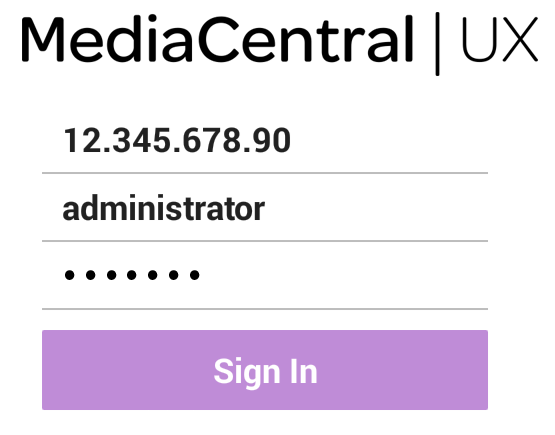
The sign-in screen appears.
2. Type the MediaCentral server name.
3. Type your MediaCentral user name and password.
4. Tap the Sign In button.

If your MediaCentral credentials are incorrect or missing in your MediaCentral account, you receive a message: “Authentication Failed: The user name or password you entered is incorrect.” When you click OK, the sign-in screen appears and allows you to enter valid credentials.
If you are signing in with the MediaCentral mobile application for the first time and use incorrect credentials, you might not see an error message and the navigation drawer does not display any iNEWS servers. The iNEWS sign in screen displays and you must log in with the correct credentials. The iNEWS sign in screen displays until you enter your correct user name and password.
After you sign in, the MediaCentral mobile application connects to the selected Interplay Production or iNEWS system. All servers display in the navigation drawer.
To view the help system:
1. 
Tap the Action overflow button.
2. Select Help.
To sign out:
1. 
Tap the Action overflow button.
2. Select Sign Out.
To exit the application, do the following:

Tap the Home button on your Android device.