Viewing and Ending Active Sessions
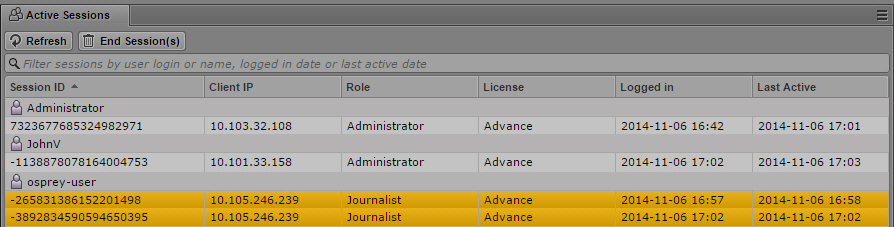
A MediaCentral UX administrator can view a list of users who are currently signed in to the MediaCentral UX Web application, along with information such as their IP address, when they logged in, and when they were last active. If a user has more than one session open in a browser, all sessions are shown. The following illustration shows an example, sorted by user name in the Session ID column. The user named osprey-user has more than one session open.
The administrator has the option to end one or more sessions. If more than one session is open for a user, the administrator can choose to end individual sessions or all sessions.

A user can have multiple roles assigned, of which only one is active at any time. A user can select a different role by choosing a layout assigned to that role in the Layout selector. When the user switches the role, the old session stays active until it automatically times out after five minutes. This might cause multiple sessions for that user to appear in the Active Sessions view.

Ending a user session can cause data loss if the user has not saved all changes. For example, the auto-save feature does not work for stories and sequences.
To view active sessions:
1. Open the Users layout.
2. Click the Active Sessions pane. If the pane is not open, select Panes > Active Sessions.
3. Click the Refresh button to display the most recent information.
You can use the filter field (Ctrl-F) to filter sessions by user login or name, logged in date, or last active date. You can sort each column by clicking on the column heading.
To view details about a user, do one of the following:

Right-click a session and select Show User Details.
Select a session, click the Pane Menu button, and select Show User Details.
To end one or more sessions:
1. Select one or more sessions.
Click the user name to select all sessions. Use Ctrl+click (Windows) or Command+click (Macintosh) to select multiple sessions, or Shift+click to select contiguous sessions.
2. Do one of the following:
Click the End Session(s) button.
Right-click and select End Session(s).
Click the Pane Menu button and select End Session(s).
Press Ctrl+Delete.
A confirmation box is displayed.
3. Click the End session(s) button or press Enter.
The session is ended on the server. The operation skips sessions that cannot be ended (such as your own session).
After a short delay (up to a minute), a message box is displayed on the selected clients that reads “Your session has been terminated. You will be redirected to the Sign-in screen.”
4. The user must click the Sign Out button.