Assigning Roles
You can assign roles in two ways:
• In the Role Details pane
• In the User or Group Details pane.
You can assign roles by dragging and dropping.
If you are working in a multi-zone environment, a user needs at least one role in a zone to sign in to the server for that zone. The same user can have different roles in different zones.
To assign a role in the Role Details pane:
1. Select Users from the Layout selector.
2. In the Roles pane, do one of the following:

Double-click the role that you want to assign to a user or group.
Use the arrow keys to select the role, then press Enter.
Information about the role is displayed in the Details pane.
3. Click the User Tree pane.
4. Select the user or group to which you which you want to assign the role and drag it to the Users and Groups section of the Details pane.
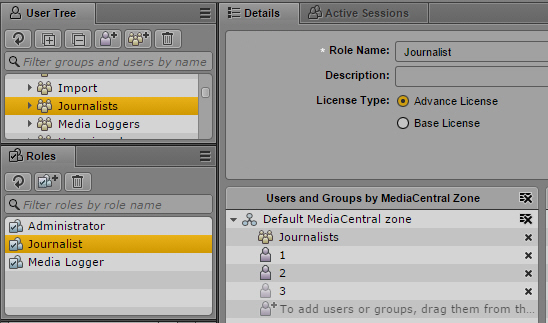
The following illustration shows the Journalists group assigned the role Journalist.
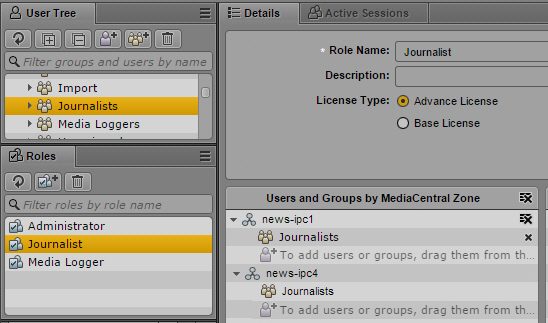
The following illustration shows the Journalists group assigned the role Journalist in two zones: news-ipc1 and news-ipc4.
5. Click Apply or press Ctrl+S to save your changes, or click Revert to cancel your changes.
To assign a role in the User or Group Details pane:
1. Select Users from the Layout selector.
2. In the user tree, double-click a user or select the user and press Enter.
You can use the filter field (Ctrl-F) to locate the user. Use the Up and Down Arrow keys to move from the filter field to the user tree and back again.
3. Click the Roles tab.
4. Select the role you want to assign to the user or group and drag it to the Role section of the Details pane.
The following illustration shows the Journalists group assigned the role Journalist.
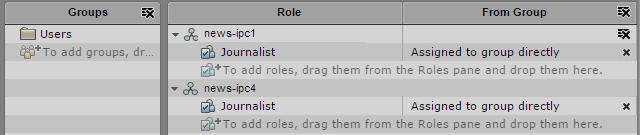
The following illustration shows the Journalists group assigned the role Journalist in both zones of a multi-zone configuration.
5. Click Apply or press Ctrl+S to save your changes or click Revert to cancel your changes.
The From Group column shows if the role is assigned directly (“Assigned to group directly”) or inherited from a parent group. If a role is inherited, the parent group is listed in the From Group column.

If you create a user in the Administrators group, sign in as the created user, assign the Administrator role directly (not inherited), remove the Administrators group from Groups, and click Apply, the system signs you out and you need to sign in again as a different user. The user you created is deleted from the Administrators group and moved to the Unassigned group.
To remove a role, select the role and do one of the following:
Click the x to the right of the role.
Right-click and select Revoke Role.
The Revoke Role option works with multiple selections. This option skips roles that cannot be deleted, for example the default Administrator role for the Administrators group or any other role inherited from a group.
The only way to remove roles inherited from a group is to remove the user or group from that group.
Press the Backspace key or the Delete key.