Configuring Interplay | MAM in the System Settings Pane
The MediaCentral administrator must specify Interplay MAM configuration information before you can use MediaCentral UX with Interplay MAM.
Note that you can configure more than one MAM system in a MediaCentral server if those MAM systems are connected to the bus of this MediaCentral instance. Also note that for each MAM system, a unique Default Realm must be configured in Interplay MAM System Administrator.
To configure Interplay MAM settings:
1. Sign in to MediaCentral UX as an administrator.
2. Select System Settings from the Layouts list.
The Settings pane and Details pane open.
3. In the Settings pane, select Interplay | MAM.
The top part of the Details pane lists the connected Interplay MAM systems and their status in the Interplay | MAM Systems section. The bottom part lists the details of the Interplay MAM system selected in the Interplay | MAM Systems section.
4. Do one of the following:

To add a new Interplay MAM system, click the + (plus) button in the Interplay | MAM Systems section.
A new system “New Interplay | MAM” with status “enabled” is added to the Interplay | MAM Systems section. The new system is selected.
To edit the settings of an existing MAM system, select it in the Interplay | MAM Systems section.
The bottom part of the Details pane displays the settings of the Interplay MAM system selected in the Interplay | MAM Systems section.
5. Configure the Interplay MAM System settings:
a. Change the name of the system in the System Name field.
b. Click Version Stack and select the version number of the MAM system to be connected.
c. Select Enabled to make the MAM system available in MediaCentral UX. Deselect Enabled to make the MAM system temporarily unavailable for user access.
6. Configure the System Connection settings:
a. Type the host name or IP address of the server where the MAM Control Center is running in the Server Name field. The name is automatically inserted as <servername> in the URL when you leave the Server Name field.
b. Type the user name to sign in to MAM Control Center. The user must be a member of the “MAM Administrators” group for MAM Control Center. This means you must have a Windows account on the Interplay MAM system that is in your Windows “MAM Administrators” group. This account can then be used by MediaCentral UX for the MAM connection.
c. Type the password to sign in to MAM Control Center.
d. (Option) Change the server name of the automatically generated MAM Control Center base URL https://<servername>:9911/ControlCenter.
If you change the server name, the Server Name field is updated when you leave the URL field. If the registry can be accessed, the Version, System ID, Bus Realm, and Status fields are automatically filled in and updated when you leave the Server Name or URL field.
7. (Option) Check the Features of the Interplay MAM system. Which features are available depends on the assigned license.
- MAM License: The MAM system has a full license for use with MediaCentral UX.
(In the MAM backend, the license features ENT_AM_OPT_CORE, ENT_AM_OPT_MCUX, and ENT_AM_OPT_ORCHESTRATION are checked.)
- Orchestration License: The MAM system is dedicated to orchestration only. It is not shown in the Launch pane; users can neither access its folders in the Assets pane nor search for its assets or open its assets in any other MediaCentral UX pane.
(In the MAM backend, the licensed features ENT_AM_OPT_CORE and ENT_AM_OPT_ORCHESTRATION are checked.)
- No License: The MAM system is not licensed for use with MediaCentral UX.
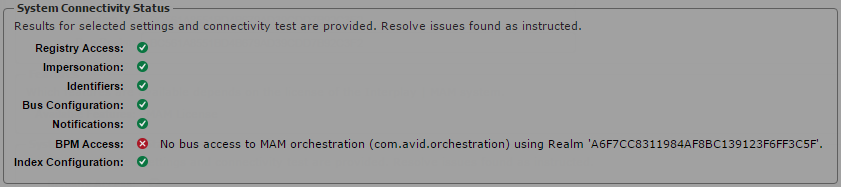
8. Check the System Connectivity Status: After you provide the System Connection settings, a basic system connectivity status check is triggered. This query checks if the most relevant settings for the MediaCentral connection are configured properly in the Interplay MAM configuration profiles.
- Registry Access: Checks if the MAM registry can be reached.
- Impersonation: Checks if the impersonating system user “Service-Ics” that does the mandate log in is created and configured in MAM User Management.
- Identifiers: Checks if the settings for System ID and BusRealm exist and share the same value.
- Bus Configuration: Checks if all settings for the Bus access in the Global/Bus section are configured.
- Notifications: Checks if the settings for updating the Progress and Tasks pane exist and are configured.
- BPM Access: Checks if BPM Controller can access the Bus
- Index Configuration: Checks if the settings for propagating data to Central Index exist and are enabled.
If a configuration issue is detected, a red error icon is shown and a message provides information about the affected setting. Resolve the configuration error as indicated in the message in Interplay MAM System Administrator.
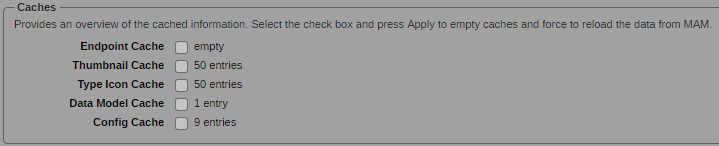
9. (Optional) Empty caches and force data reload from Interplay MAM. The Caches section shows for each cache you can flush the number of items in the cache.
- Endpoint Cache: Contains method calls that are not supported by the connected MAM system (“compatibility cache”). Starting with version 2.10.2, it contains also the Naming Service entries of the MAM services (“endpoint cache”).
- Thumbnail Cache: Contains the thumbnails displayed in the Assets, Search, and Tasks panes.
- Type Icon Cache: Contains asset type icons displayed in the Assets, Search, and Tasks panes.
- Data Model Cache: Contains the currently cached MAM data model, always 1 entry.
- Config Cache: Contains cached MAM configuration settings.
Select the caches you want to flush. The selected caches are flushed when you press the Apply button.
10. Configure the behavior of MAM Federated Searches in MediaCentral UX:

Changing the default settings might result in slow performance or an out of memory error. Avid does not recommend changing these settings.
a. Select Auto-Append Wildcards if you want to append each search term by an asterisk before submission. This allows a search behavior more similar to Interplay Production and iNEWS. However, selecting Auto-Append Wildcards significantly slows down your searches for MAM assets.
b. Limit Result Set: The default result limit is 1000. For performance reasons, each connected MAM system only returns 1,000 hits at maximum — even if you deselect Limit Result Set or enter a limit exceeding 1,000 hits.
11. Click Apply.
12. Select Research from the Layouts list.
The panes of the Research layout open. The new Interplay MAM system is shown on the Launch pane.
Removing an Interplay MAM system from MediaCentral UX:
1. Select the system you want to remove in the Interplay | MAM Systems section.
2. Click the minus (-) button in the Interplay | MAM Systems section.
3. Click OK in the confirmation prompt that opens.
The system is removed from the Interplay | MAM Systems section.

Interplay MAM users currently signed in to MediaCentral UX can see and access the removed system in the Launch pane until their session expires or they sign out.
4. Log out from MediaCentral UX.